
Create a Scale Drawing at a Specific Scale
Why doesn't my SimpleDraw PNG have a scale?
If you've ever looked at a floor plan or site plan on paper, you'll know that a scale drawing always has a fixed, stated scale — "1:100", "1:200", or "1/4 inch = 1 foot". The scale is baked in, because the drawing is a physical object with physical dimensions. A line that is 5cm long on a 1:100 drawing represents exactly 5 metres in real life, full stop.
Digital drawings work differently — and in many ways, this is actually an advantage. A PNG image exported from SimpleDraw is just a grid of pixels. It has no intrinsic physical size. You can display it on a phone screen, a 27-inch monitor, or a billboard, and the pixels will scale to fit. You can print it at A4 or A3 or poster size. The software doesn't need to know or care about the physical output — that's decided later, by you, when you print or share it.
This is genuinely more flexible than a pen-and-paper drawing. With a paper drawing, if you decide you want a different scale, you have to redraw everything. With SimpleDraw, your drawing always stores the real-world dimensions — a wall that is 5 metres long is always 5 metres long in the software. You choose the output scale at export time, not at drawing time. You can produce the same drawing at 1:100 for a planning application, and at 1:50 for a detailed construction drawing, without changing anything in the drawing itself.
The catch is that a raw PNG file doesn't carry that scale information with it. If you email a PNG to a planning officer, they can print it at any size they like, and the scale will be wrong. What you need is a PDF — a format that specifies the physical page size and the physical dimensions of everything on the page. A PDF can guarantee that your drawing prints at exactly 1:100 on A4, every time.
SimpleDraw doesn't yet export PDFs directly, but the workaround is quick and free: use Google Docs to place your PNG at the correct physical dimensions, then download as PDF. The steps below walk you through exactly how to do this.
This workflow is useful any time you need to submit a drawing at a specific scale — for example:
- A building permit or building consent application (US, Australia, New Zealand)
- A planning application or planning permission submission to your local council or planning authority (UK)
- A zoning application or variance application (US)
- A permis de construire or similar submission (France and other European countries)
- A Baugenehmigung application (Germany)
- Any submission to a homeowners association (HOA), landlord, or building management company that requires scaled drawings
How to Export a Scale Drawing as a PDF
Follow these steps to export your SimpleDraw drawing as a PDF at a specific scale, such as 1:100. We'll use a 20m × 10m drawing on A4 Landscape as our worked example, but you can follow the same process to output a PDF as US Letter, A3, or any other page size.
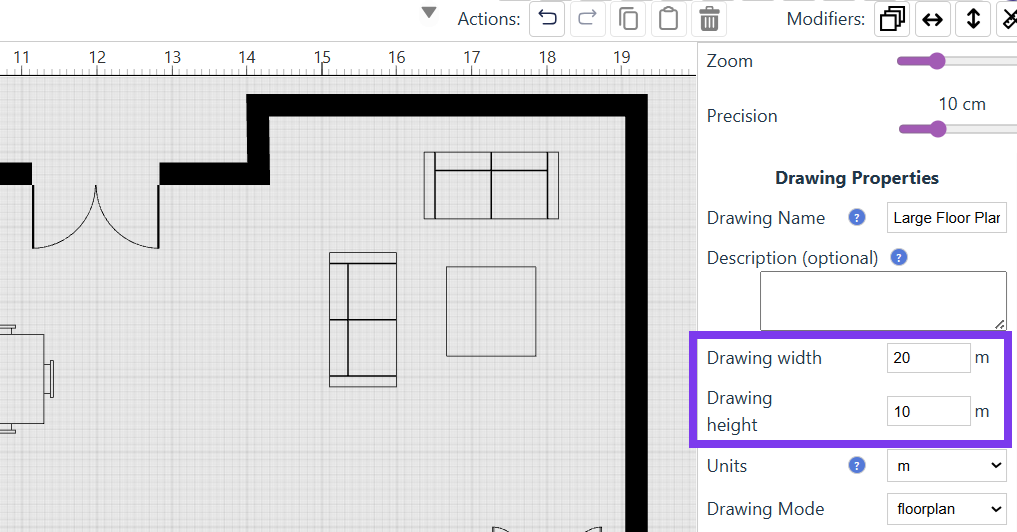
Make a note of your drawing dimensions
In SimpleDraw, open the drawing you want to export, and view the Drawing Properties panel (the wrench icon). Make a note of the real-world dimensions of your drawing. For example, if your drawing covers a 20m × 10m area, write that down. You'll need it in a later step.
Export your drawing as a PNG from SimpleDraw
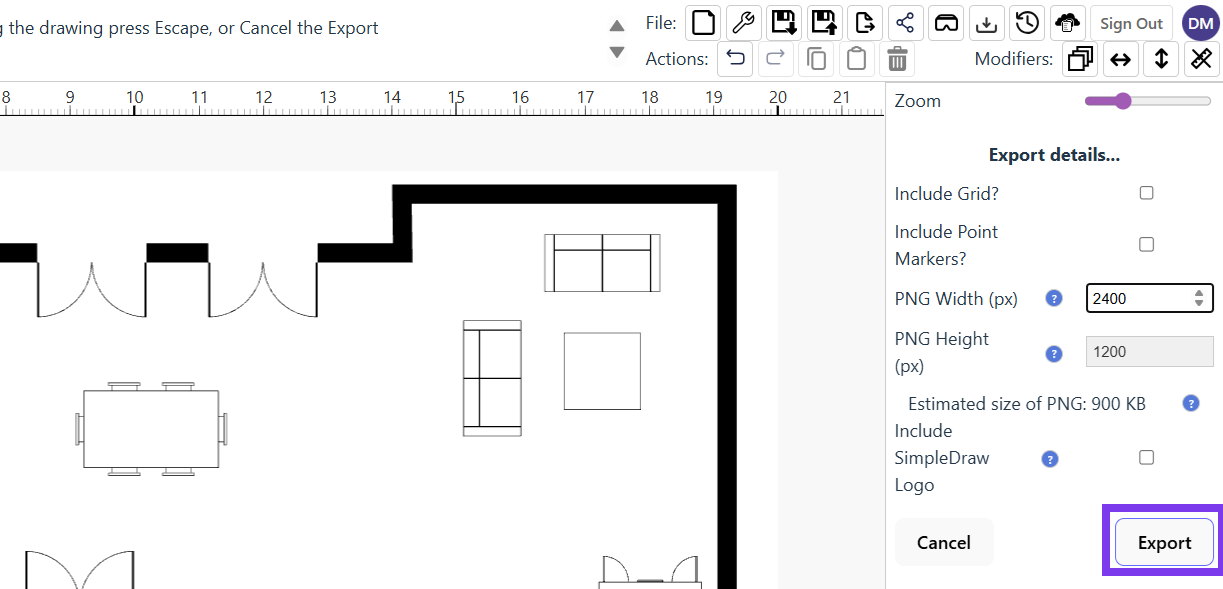
Click the Export button and choose "Export" to export your drawing as a PNG. You can adjust the image quality and file size by adjusting the PNG Width (measured in pixels). Most printers print at 300 dpi (dots per inch), so 300 pixels per inch or 120 pixels per centimetre will give you optimal print quality. In this case, we're printing the drawing at 1:100 scale, so 20cm wide - giving us 2400 pixels at 120 pixels per centimetre.
Create a new Google Doc
Go to Google Docs (docs.google.com) and create a new blank document. If you don't have a Google account, you can create one for free.
Set the page size
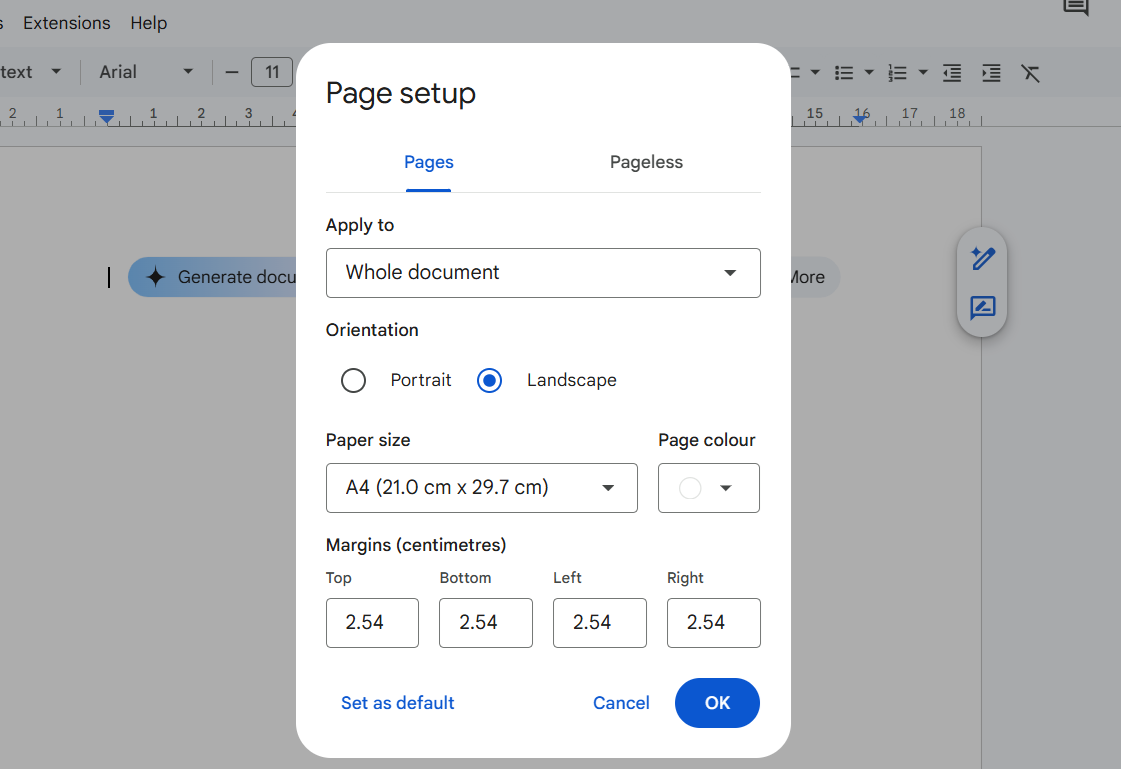
Go to File → Page Setup. Set the page size to match what your planning authority expects. In the UK and most of Europe, this will be A4 or A3. In the US, use US Letter. Set the orientation to Landscape if your drawing is wider than it is tall — for example, a 20m × 10m drawing fits better on a landscape page. Click OK.
Tip: Not sure what page size to use? Check the submission guidelines from your local planning authority, city, or municipality. Many specify A4 or A3 for planning drawings.
Add your PNG into the document
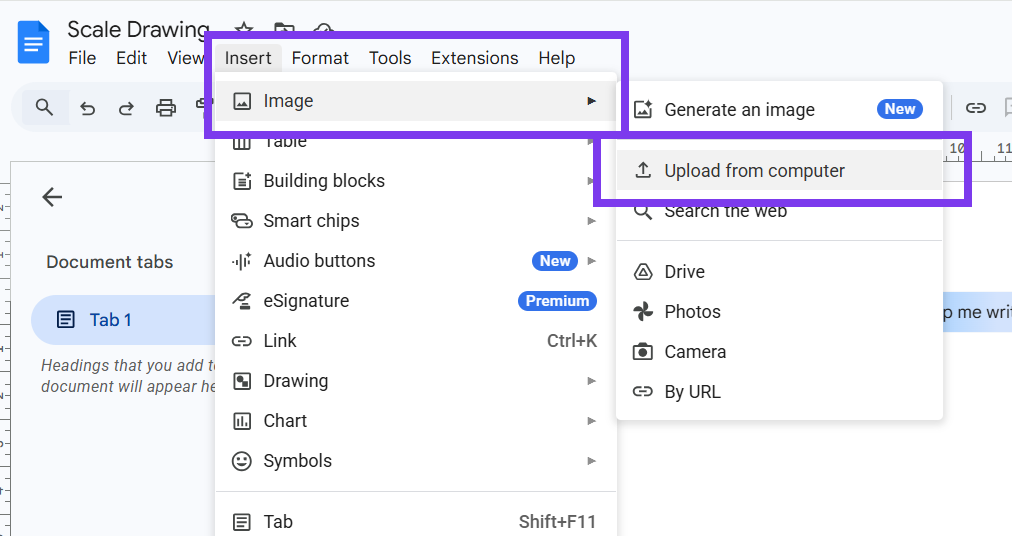
Select Insert / Image / Upload from computer..., and select the PNG you just exported from your Downloads Folder. The image will appear in the document, probably at the wrong size — that's fine, we'll fix it in the next step.
Set the image to the correct dimensions
Right-click on the pasted image and choose "Image options". In the panel that appears, find the Size & Rotation section. Enter the correct width and height in centimetres (or inches). For a 1:100 scale, 1 metre of real-world space = 1 centimetre on the page. So a drawing that covers 20m × 10m in the real world should be set to 20cm × 10cm. This gives you a scale of 1:100 — a standard scale for planning and building permit drawings.
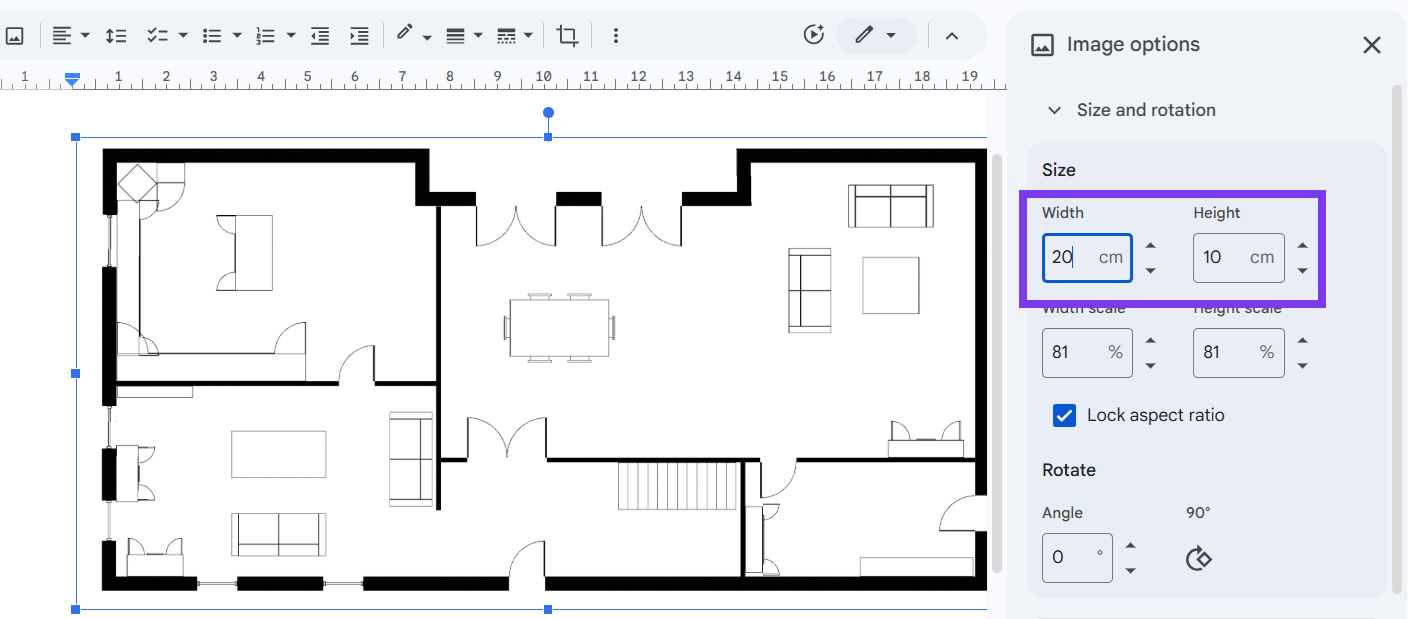
Tip: Calculating scaled dimensions isn't always so easy as this example. You can use our free tool to calculate dimensions correctly, or to check your own working.
Add a scale caption
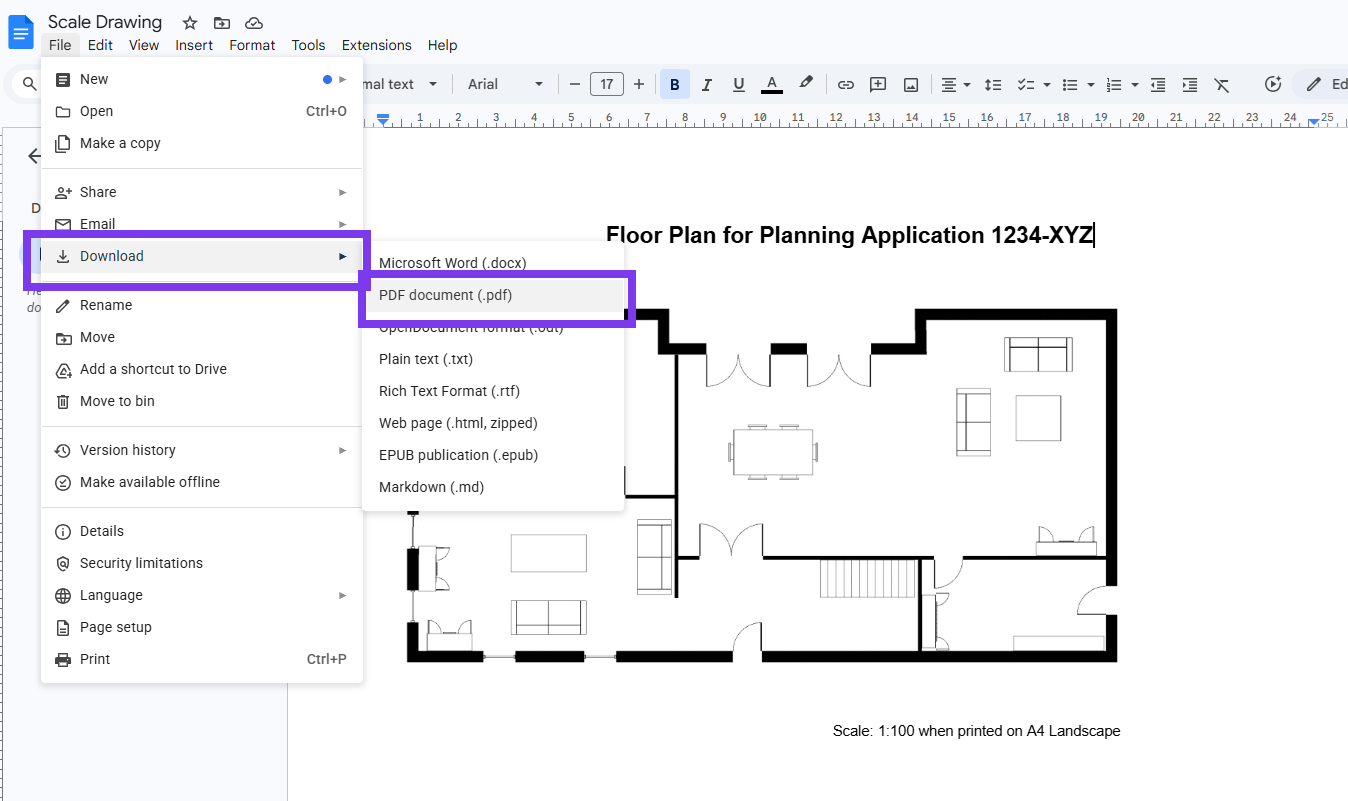
Click below the image and add a caption such as: "Scale 1:100 — A4 Landscape". This makes it clear to the planning officer or reviewer what scale the drawing is at, and that it is only correct at that scale when printed on the specified paper size. You can also add a title and any other detailed text that you want to include in your document.
Tip: Always include a note like "Scale only valid when printed on A4" or similar. If someone prints your PDF on a different paper size, the scale will be wrong — the caption warns them of this.
Download as PDF
Go to File → Download → PDF Document (.pdf). Google Docs will generate a PDF with your drawing embedded at exactly the dimensions you specified. This PDF has intrinsic physical dimensions — unlike a raw PNG, it will print at the correct scale on the correct paper size.
Frequently Asked Questions
Everything you need to know about SimpleDraw's free online drawing tools
Ready to create your first scale drawing?
Start drawing in SimpleDraw