
How to open the Browser inside your VR Headset
Press the Meta button on your right controller — the circle/logo button below the thumbstick. If using hand tracking, tap your wrist to open the menu.
Look along the bottom bar (the universal menu). Find the Meta Browser icon — it looks like a spaceship shooting past a planet. If you cannot see it, select Search and type "Browser".

Navigate to simpledraw.app/live and follow the on-screen instructions.
Having trouble? VR Troubleshooting
Note:
Apple Vision Pro support is restricted at this time.
Because Apple Vision Pro does not have controllers with thumbsticks, we do not offer any locomotion options on this platform. You can still view floor plans in VR and walk around, but you will need to be in a physical space large enough to allow you to walk around the whole environment, as there is no way to adjust your position other than by physically moving.
Open Safari from the Home view.
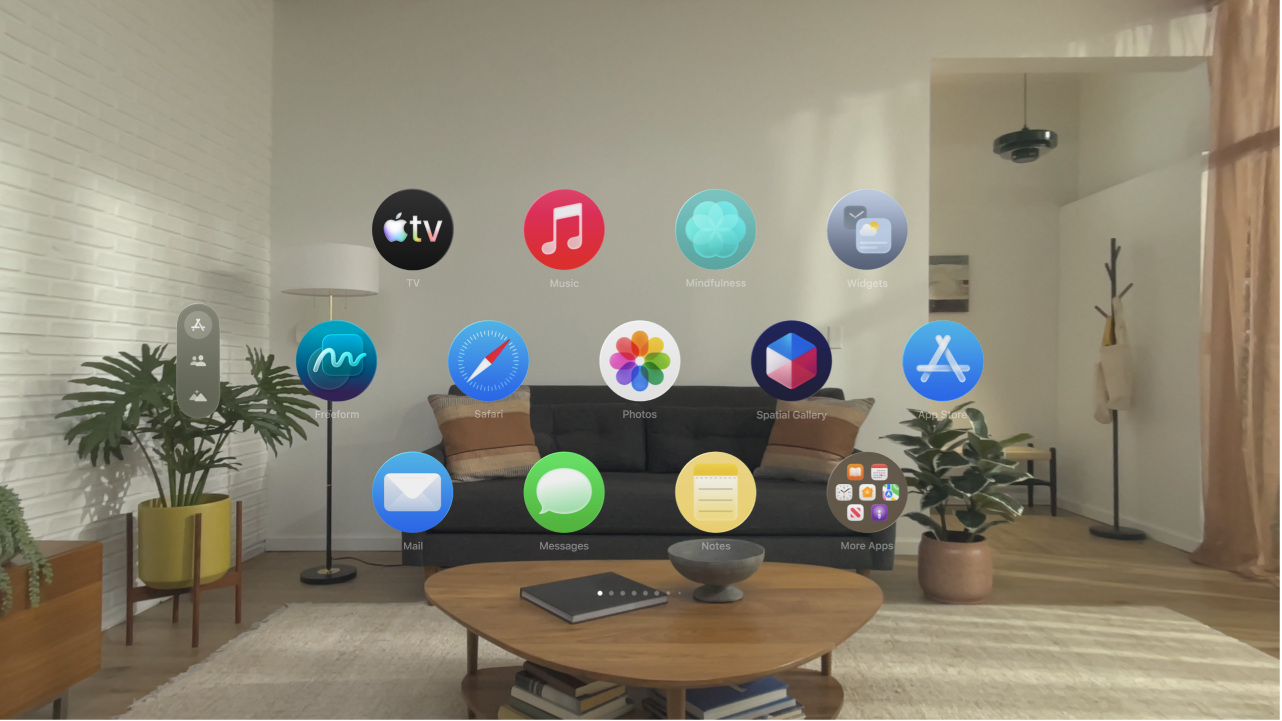
Navigate to simpledraw.app/live and follow the on-screen instructions.
Having trouble? VR Troubleshooting
From the home screen, open the App Library (the grid icon in the dock).
Launch the Browser app.
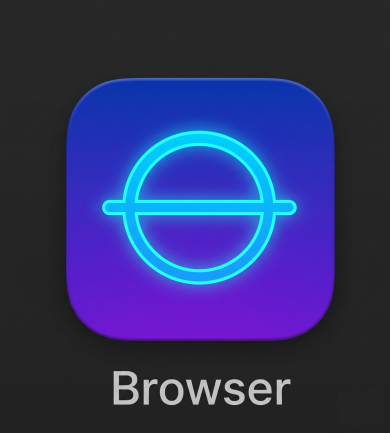
Navigate to simpledraw.app/live and follow the on-screen instructions.
Having trouble? VR Troubleshooting
From the home environment, open the App Launcher.
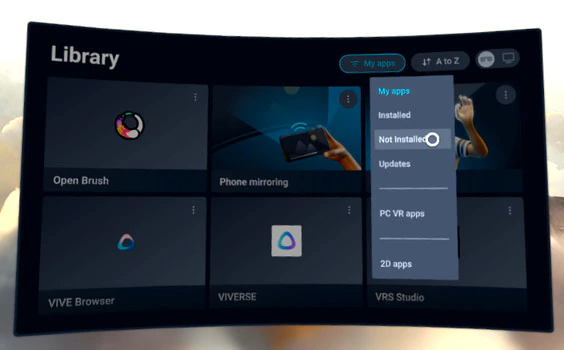
Open the VIVE Browser app.
Navigate to simpledraw.app/live and follow the on-screen instructions.
Having trouble? VR Troubleshooting
Most standalone VR headsets run Android and include a browser in the app library. Find the browser, navigate to simpledraw.app/live, and follow the on-screen instructions.
If your headset is not listed here and you run into any issues, ask in the #vr channel on our Discord — or check the troubleshooting page.
Frequently Asked Questions
Learn More about WebXR Browsers and SimpleDraw VR walkthroughs
Still not sure about connecting SimpleDraw to your VR Headset?
Join the #vr channel on our Discord Server