
Take Measurements from a PDF
Before you start.
You need a drawing that is accurately drawn to scale. It can be a floor plan, a site plan, an elevation, or any other to-scale drawing. You also need either the drawing's scale (for example 1:50 or 1:100), or the real-world size of at least one thing shown on it: a printed scale bar, a dimension label, a door. If you want to try this out without subscribing to SimpleDraw Plus, you can follow along with our example drawing: open it, choose "Create a copy for editing", and you have a PDF drawing to practice on. You'll need to subscribe to upload your own drawing.
Open your PDF in SimpleDraw.
PlusStart a new drawing and choose to draw over a PDF or image, then pick your file. If your PDF has more than one page, you'll be asked which page you want.
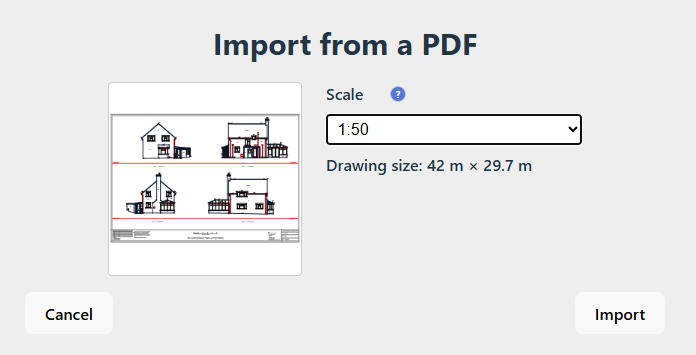
Set the scale as you import.
The import dialog has a Scale setting with the common drawing scales - 1:50, 1:100, 1:200 and more - plus a custom option if yours isn't listed. Underneath, SimpleDraw shows the real-world size the drawing will end up, so you can check your choice before importing. If you don't know your drawing's scale, don't worry: as long as you know the size of one feature on it, you can adjust the scale later.
Tip: If the drawing size doesn't look right, the scale is probably wrong. Change it before you import.
Choose your units.
By default, drawing measurements are displayed in meters, but you can change this to your preferred units. Right-click anywhere on empty canvas, choose "Change drawing units", and pick the units you want to work in - meters, centimeters, millimeters, feet or inches. You can also change it later in Drawing Properties  .
.
Don't know the scale? Set it from something you can identify.
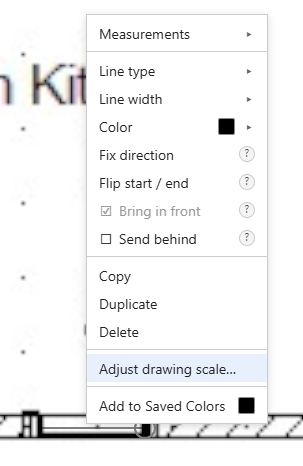
If the scale isn't printed on the drawing, you can work it out from anything on it whose real size you know. This could be a scale bar, a dimension label, or a standard doorway. Draw a line along that feature (see step 7 for detailed guidance on drawing lines precisely), then right-click it and choose "Adjust drawing scale...", then enter its true length. The whole drawing resizes to match. Our step-by-step guide walks through it: How to Set a Drawing to the Correct Scale. Once your drawing is correctly scaled, come back here and carry on from the next step.
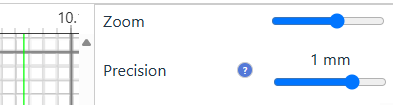
Zoom in, and check what you're snapping to.
SimpleDraw snaps your clicks to a grid, and that grid gets finer as you zoom in - so zooming in gets you additional precision. The Precision setting shows how finely your clicks are being placed. You don't normally need to touch it, because it follows the zoom level automatically, but it's worth a glance to know whether you're placing points to the nearest millimeter or the nearest meter. If you want it finer than the zoom gives you, move the slider yourself.
Tip: You can also control the weight of the grid, or remove it completely, by adjusting the Grid Weight slider in Drawing Properties / Display.
Draw a line along what you want to measure.
Select the Line tool  , click at the start point, then click at the end point - along a window sill, across a room, or between any two points you care about. The line can run in any direction. Hold the C key to lock it to horizontal or vertical. If you need to adjust one of the ends after you have placed it, you can drag it using the mouse, zooming in for extra precision if needed.
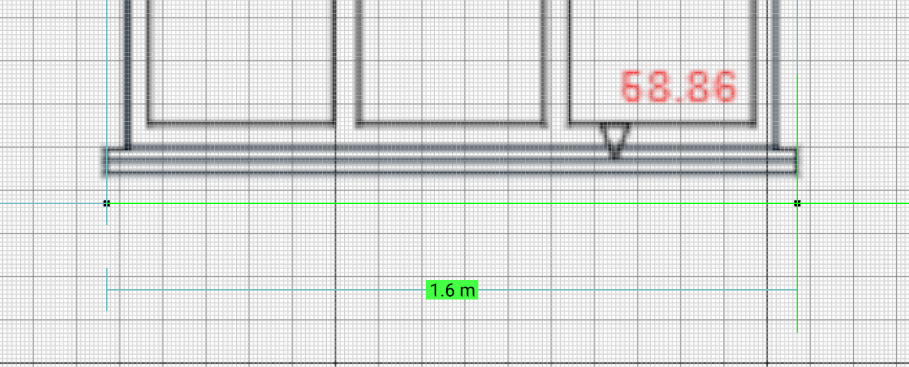
Read the measurement.
The length appears on the line as you draw it, and stays while the line is selected. To move on without drawing another line, switch to the Select tool  first (with the Line tool still active, clicking anywhere will start a new line). Once you click away the measurement is no longer shown, though it is still there: select the line again and it comes back. Measurements use whatever units your drawing is set to, so if you work in feet and inches, that's what you'll see. You can change this in Drawing Properties .
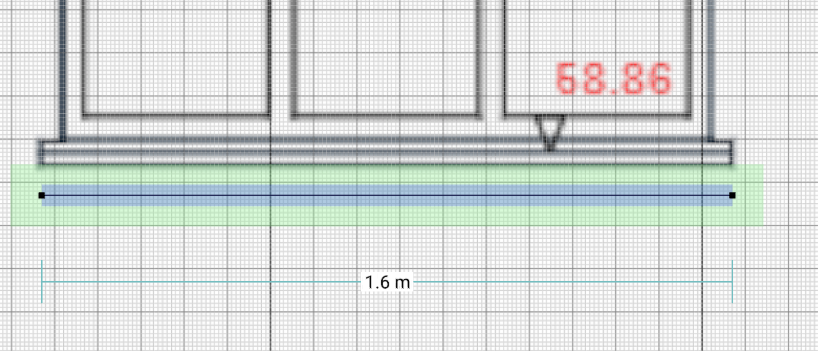
Tip: No measurement showing? SimpleDraw hides measurements below a minimum length - on an imported drawing that's 5 cm, so a short line may show no label at all. Lower "Don't show if smaller than..." in Drawing Properties if you need to measure something smaller.
Keep the measurement, or clear it away.
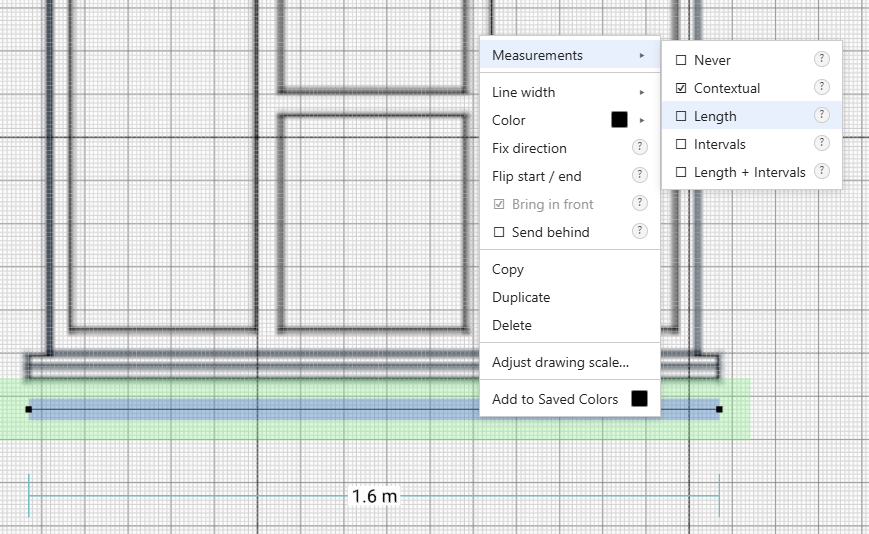
With the Select tool active, right-click the line and take your pick. To keep the measurement visible, open Measurements and switch it from Contextual to Length - the label then stays on screen after you click away, which is handy when you're taking several measurements and comparing them. To tidy up instead, choose Delete: the line and its end points go, and your drawing is back as it was.
Frequently Asked Questions
Common questions about measuring on a PDF or image in SimpleDraw
 in the toolbar.
Ready to measure your own plan?
Start drawing in SimpleDrawNew to working over an imported plan? See everything else you can do once it's in: Draw over a PDF or image .