
Set a Drawing to the Correct Scale
How to Set a Drawing to the Correct Scale
Imported a floor plan at the wrong size, or drew something that doesn't match its real-world measurements? Here's how to fix the scale of an entire drawing in under a minute, using a single line of known length.
Start with a drawing that's at the wrong scale.
This can happen easily: you imported a floor plan or scanned drawing and accepted the default scale, or made your best guess, so the drawing looks right but its real-world measurements are off. It also applies to any drawing that has ended up at the wrong size, however it got there. Whatever the cause, correcting it takes less than a minute - here's how.
Find something whose real length you know.
Look for any feature in the drawing whose true length you know: a door (a standard interior door is about 0.76 m, or 2 ft 6 in), a parking bay, a printed scale bar, or a dimension label. If your drawing has a printed scale bar, use that - it gives the most accurate result.
Tip: Architect's drawings usually include a scale bar or dimension labels - either is ideal for this.
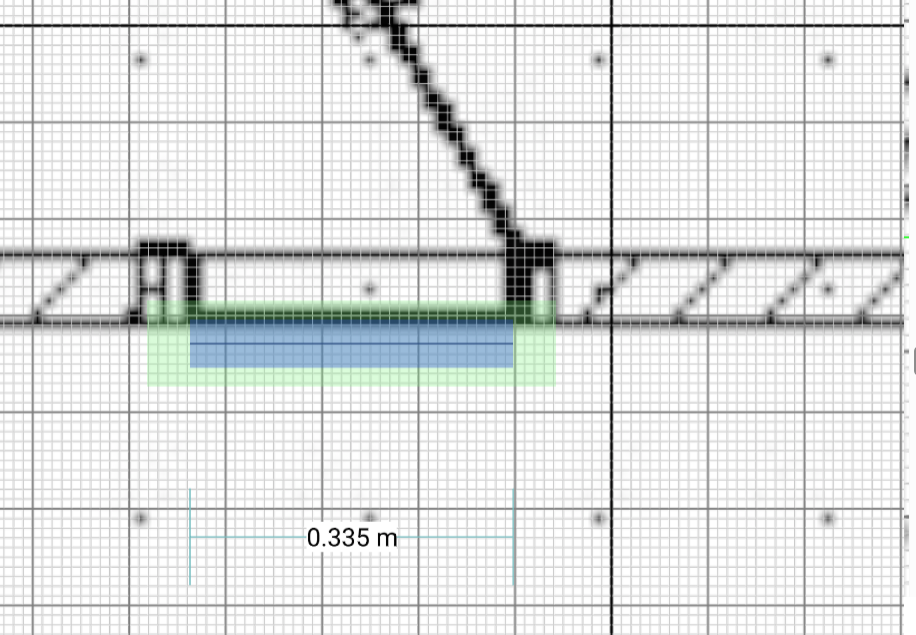
Draw a line along that feature.
Select the Line tool and draw a single line from one end of the known feature to the other. Zoom in and raise Precision to place the endpoints accurately. The line's current length will read wrong - that's expected, and we fix it next.
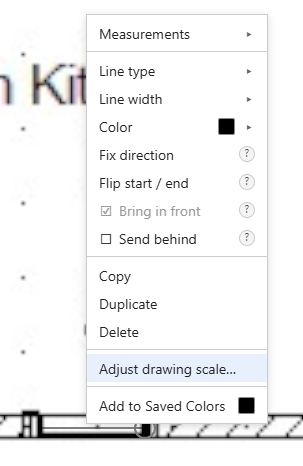
Right-click the line and choose "Adjust drawing scale…".
Select the line you just drew, right-click it, and choose "Adjust drawing scale…" from the menu. The same control also lives at the bottom of the Line Properties panel, if you prefer.
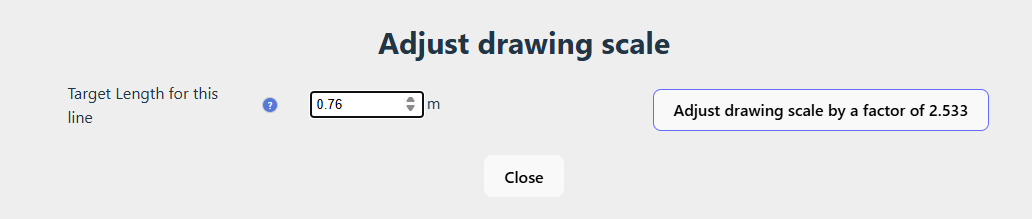
Enter the line's true length and confirm.
Type the real length of the feature, for example 0.76 m. The button updates to show the scale factor it will apply. Click it, and SimpleDraw shows a "Confirm Scale Adjustment" dialog previewing the drawing's new overall width and height. Check those look right, click "Yes, make this adjustment", and the whole drawing rescales so that line, and everything else, is now at its true real-world size.
Tip: Enter the length in whatever units your drawing uses - feet and inches are fine if that's your drawing's unit, you don't have to convert to metres.
Check a second known measurement.
Verify that a different feature now reads its correct length. If it's off, your line's endpoints were probably slightly misplaced - undo, redraw the line more carefully, and adjust again.
Frequently Asked Questions
Everything you need to know about SimpleDraw's free online drawing tools
Ready to get your drawing to the right size?
Start drawing in SimpleDraw