
Create a Scale Drawing at a Specific Scale
Why doesn't my SimpleDraw PNG export have a scale?
A scale drawing on paper always has a fixed, stated scale — "1:100", "1:200", or "1/4 inch = 1 foot". The scale is baked in, because the drawing is a physical object with physical dimensions. A line that is 5cm long on a 1:100 drawing represents exactly 5 metres in real life, full stop.
Digital drawings are more flexible. The same drawing can be displayed on a phone screen, a 27-inch monitor, or a billboard. The drawing itself doesn't really have a fixed scale. The scale is only fixed when you print the image to paper, or when you export to a document format such as PDF that explicitly specifies the physical page size and the physical dimensions of everything on the page.
For planning applications, it's often a requirement to submit drawings at a specific scale, such as 1:50 or 1:100. For this, the best solution is to send a PDF to your planning department, rather than a PNG.
SimpleDraw doesn't yet export PDFs directly, but the workaround is quick and free: use Google Docs to place your PNG at the correct physical dimensions, then download as PDF. The steps below walk you through exactly how to do this.
This workflow is useful any time you need to submit a drawing at a specific scale — for example:
- A building permit or building consent application (US, Australia, New Zealand)
- A planning application or planning permission submission to your local council or planning authority (UK)
- A zoning application or variance application (US)
- A permis de construire or similar submission (France and other European countries)
- A Baugenehmigung application (Germany)
- Any submission to a homeowners association (HOA), landlord, or building management company that requires scaled drawings
How to Export a Scale Drawing as a PDF
Follow these steps to export your SimpleDraw drawing as a PDF at a specific scale, such as 1:100. We'll use a 20m × 10m drawing on A4 Landscape as our worked example, but you can follow the same process to output a PDF as US Letter, A3, or any other page size.
Export your drawing at your chosen scale
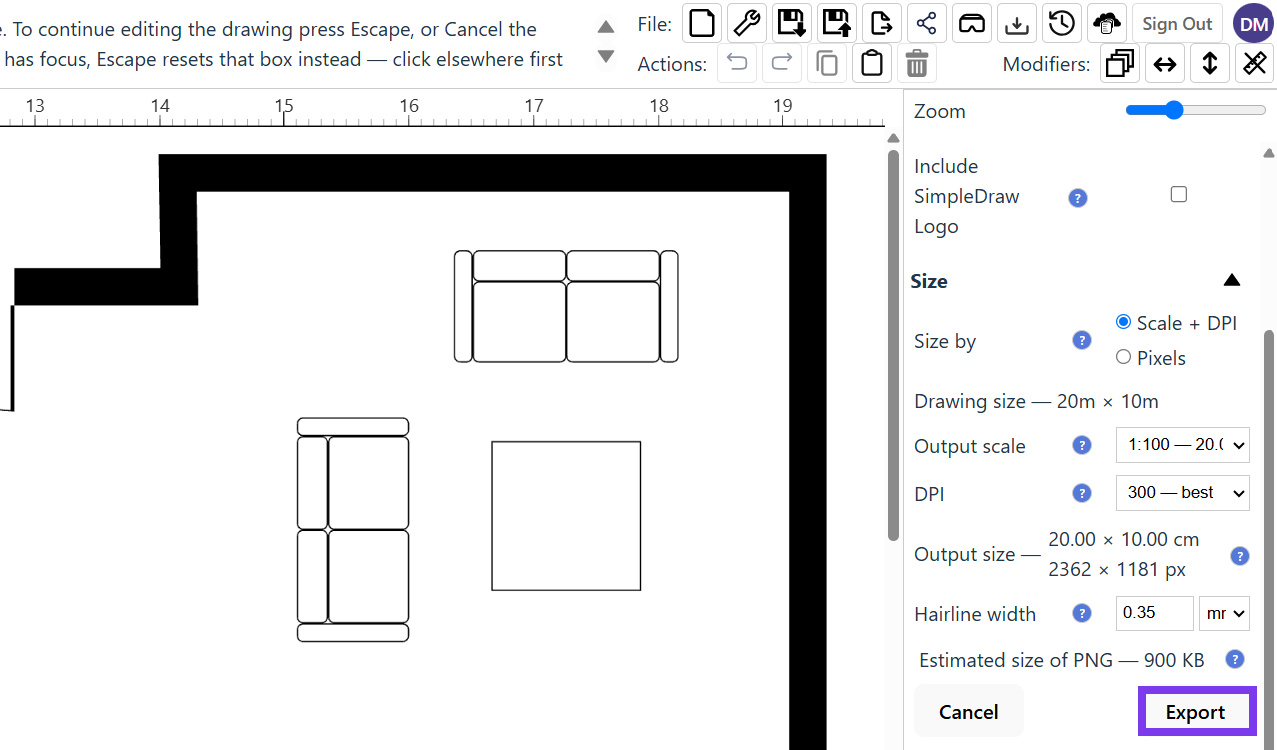
Open the drawing in SimpleDraw, click the Export button and choose "Export". In the Size section of the export panel, set "Size by" to "Scale + DPI". Choose your scale from the Output scale list (1:100 in this example), or choose Custom… if yours is not listed, then pick a DPI. 300 gives the best print quality. The panel shows the Output size, which is how big your drawing will be on the page. For a 20m × 10m drawing at 1:100, that is 20.00 × 10.00 cm. Make a note of it, then click Export. If SimpleDraw asks you a quick question first, answer it and your download will start.
Create a new Google Doc
Go to Google Docs (docs.google.com) and create a new blank document. If you don't have a Google account, you can create one for free.
Set the page size
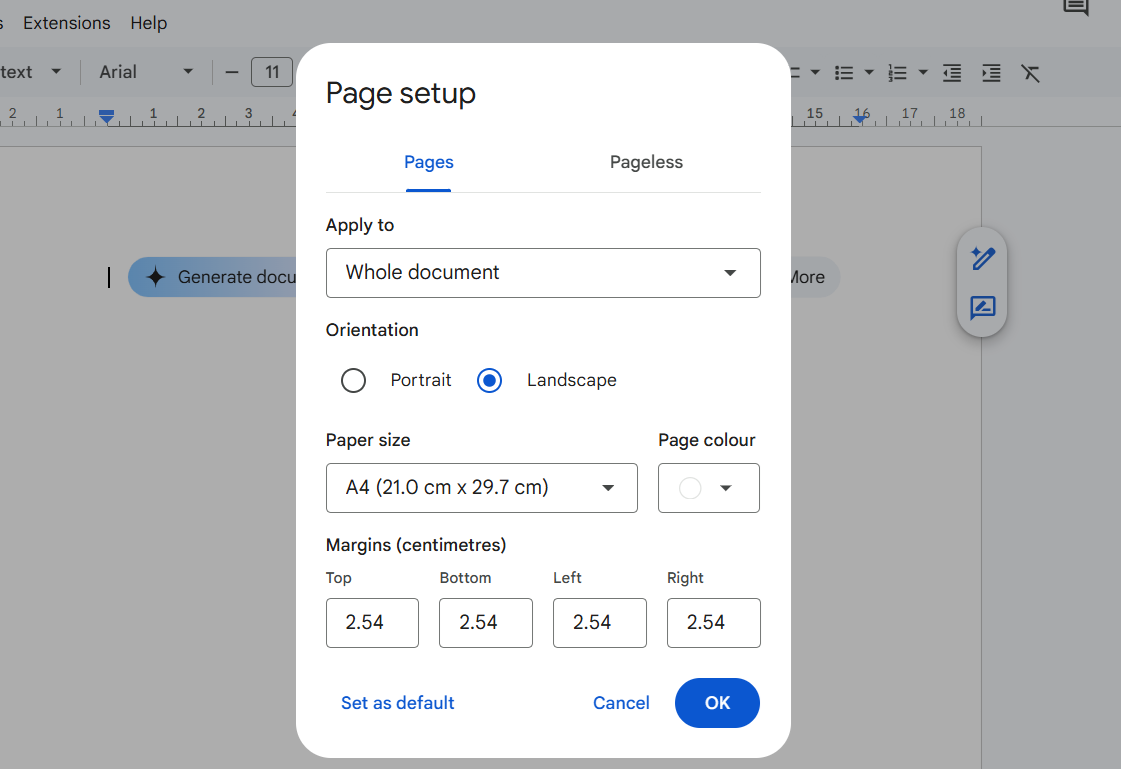
Go to File → Page Setup. Set the page size to match what your planning authority expects. In the UK and most of Europe, this will be A4 or A3. In the US, use US Letter. Set the orientation to Landscape if your drawing is wider than it is tall — for example, a 20m × 10m drawing fits better on a landscape page. Click OK.
Tip: Not sure what page size to use? Check the submission guidelines from your local planning authority, city, or municipality. Many specify A4 or A3 for planning drawings.
Add your PNG into the document
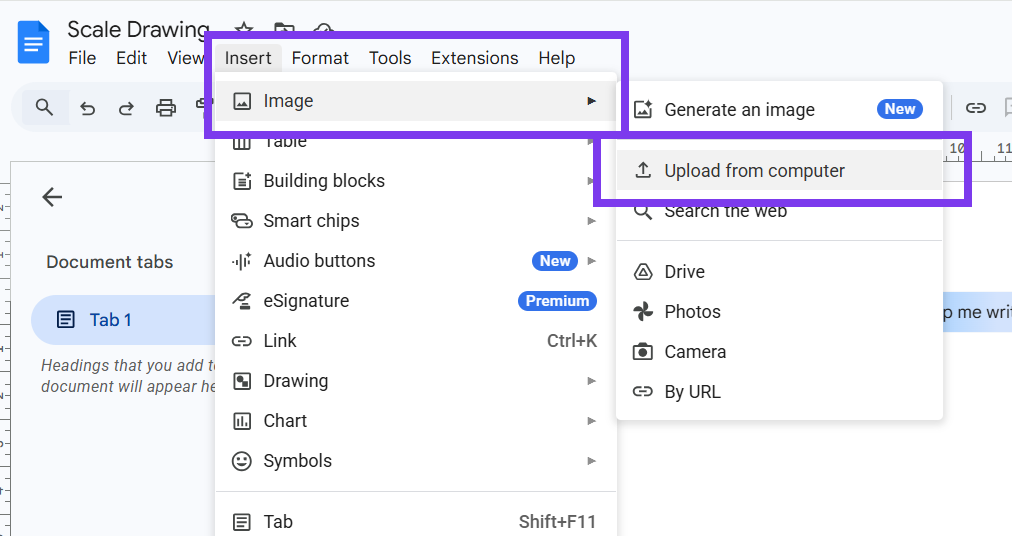
Select Insert / Image / Upload from computer..., and select the PNG you just exported from your Downloads Folder. The image will appear in the document, probably at the wrong size — that's fine, we'll fix it in the next step.
Set the image to the Output size
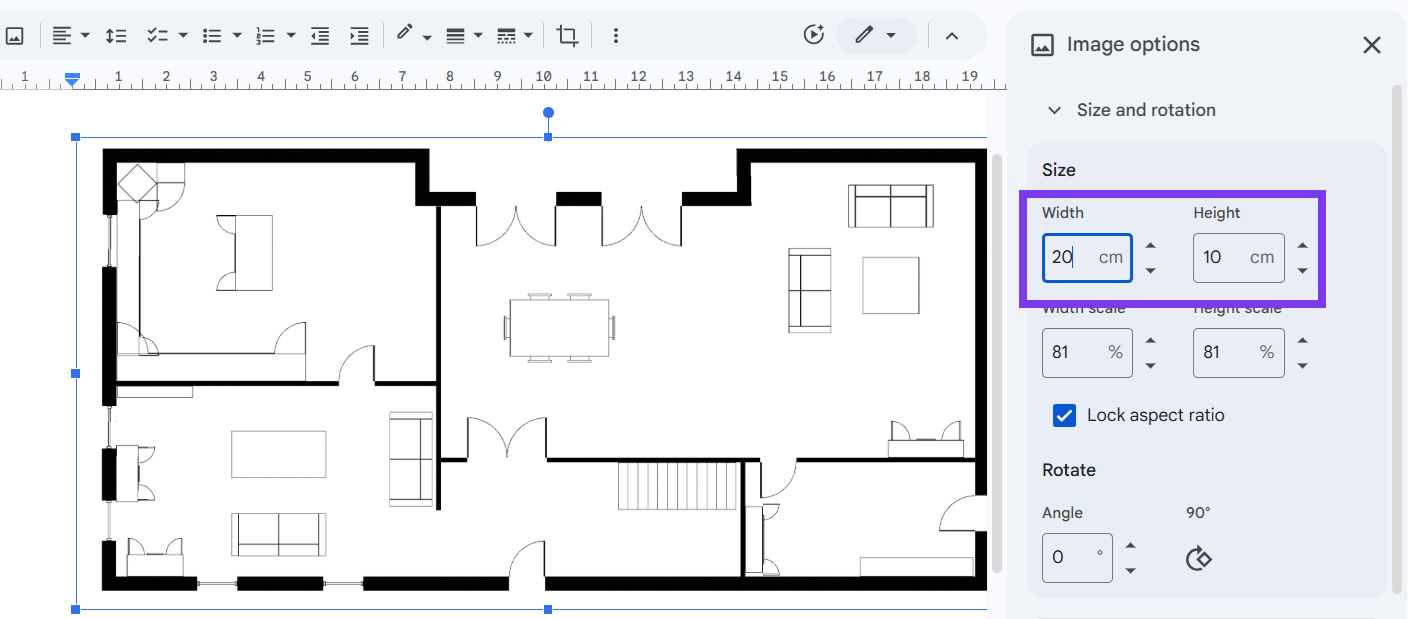
Right-click the image and choose "Image options". In the panel that appears, find the Size & Rotation section and enter the Output size you noted in SimpleDraw: 20.00 × 10.00 cm in this example (or in inches, if that is how SimpleDraw showed it). Your drawing is now at exactly 1:100 on the page.
Tip: Prefer not to use Google? LibreOffice is free too, and it reads the DPI SimpleDraw saves in the PNG, so the image arrives at the Output size by itself, as long as it fits within the page margins. A larger image is shrunk to fit without warning, so check the size, especially for a large drawing.
Add a scale caption
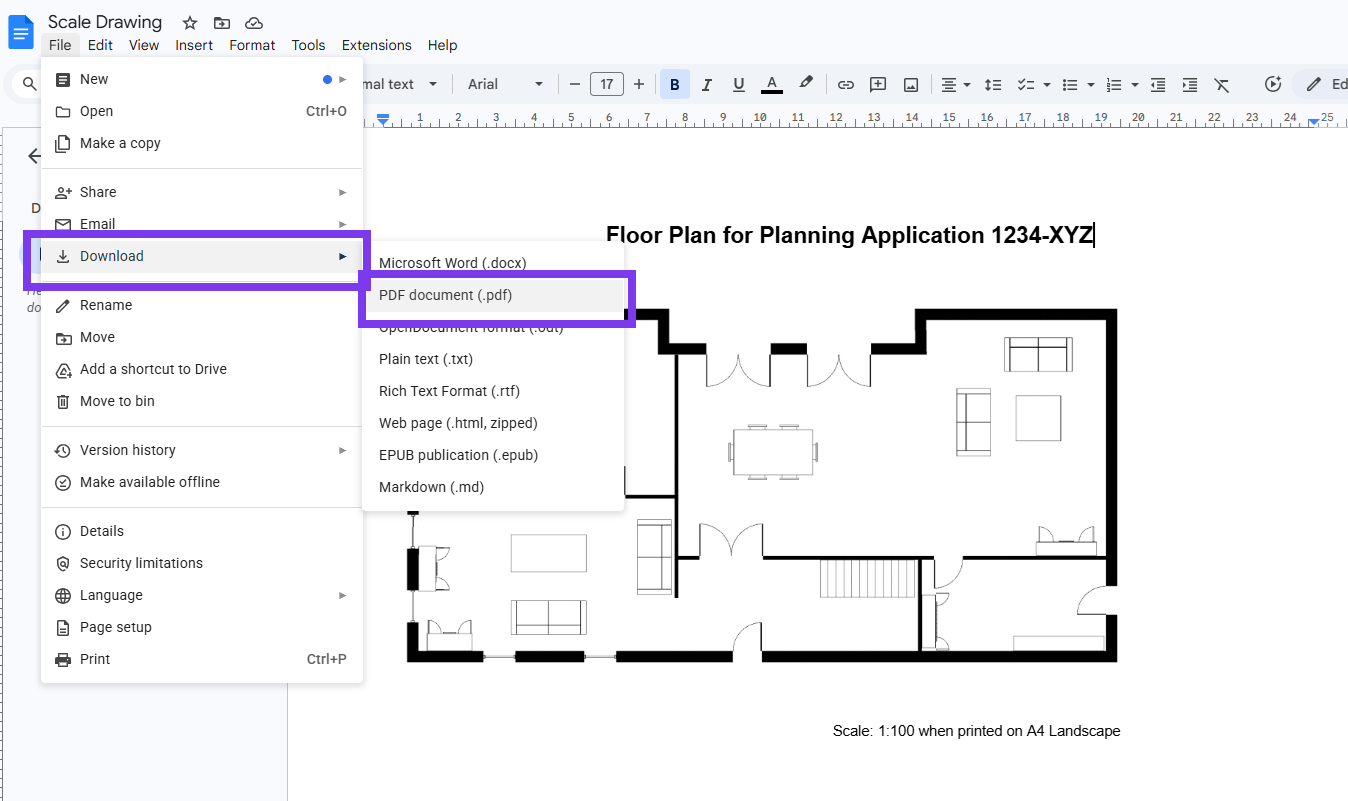
Click below the image and add a caption such as: "Scale 1:100 — A4 Landscape". This makes it clear to the planning officer or reviewer what scale the drawing is at, and that it is only correct at that scale when printed on the specified paper size. You can also add a title and any other detailed text that you want to include in your document.
Tip: Always include a note like "Scale only valid when printed on A4" or similar. If someone prints your PDF on a different paper size, the scale will be wrong — the caption warns them of this.
Download as PDF
Go to File → Download → PDF Document (.pdf). Google Docs will generate a PDF with your drawing embedded at exactly the dimensions you specified. This PDF has intrinsic physical dimensions — unlike a raw PNG, it will print at the correct scale on the correct paper size.
Frequently Asked Questions
Everything you need to know about SimpleDraw's free online drawing tools
Ready to create your first scale drawing?
Start drawing in SimpleDraw