
Understanding the SimpleDraw editor
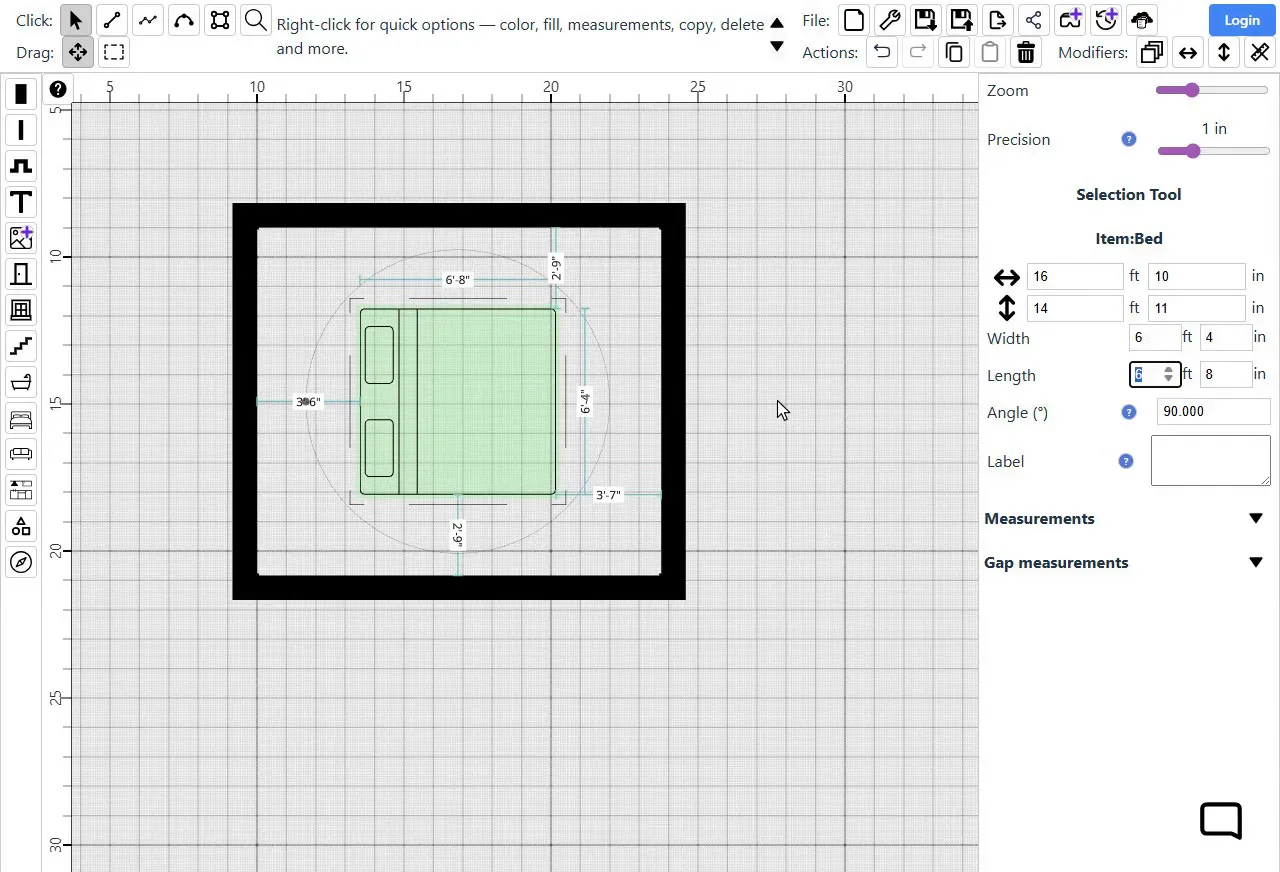
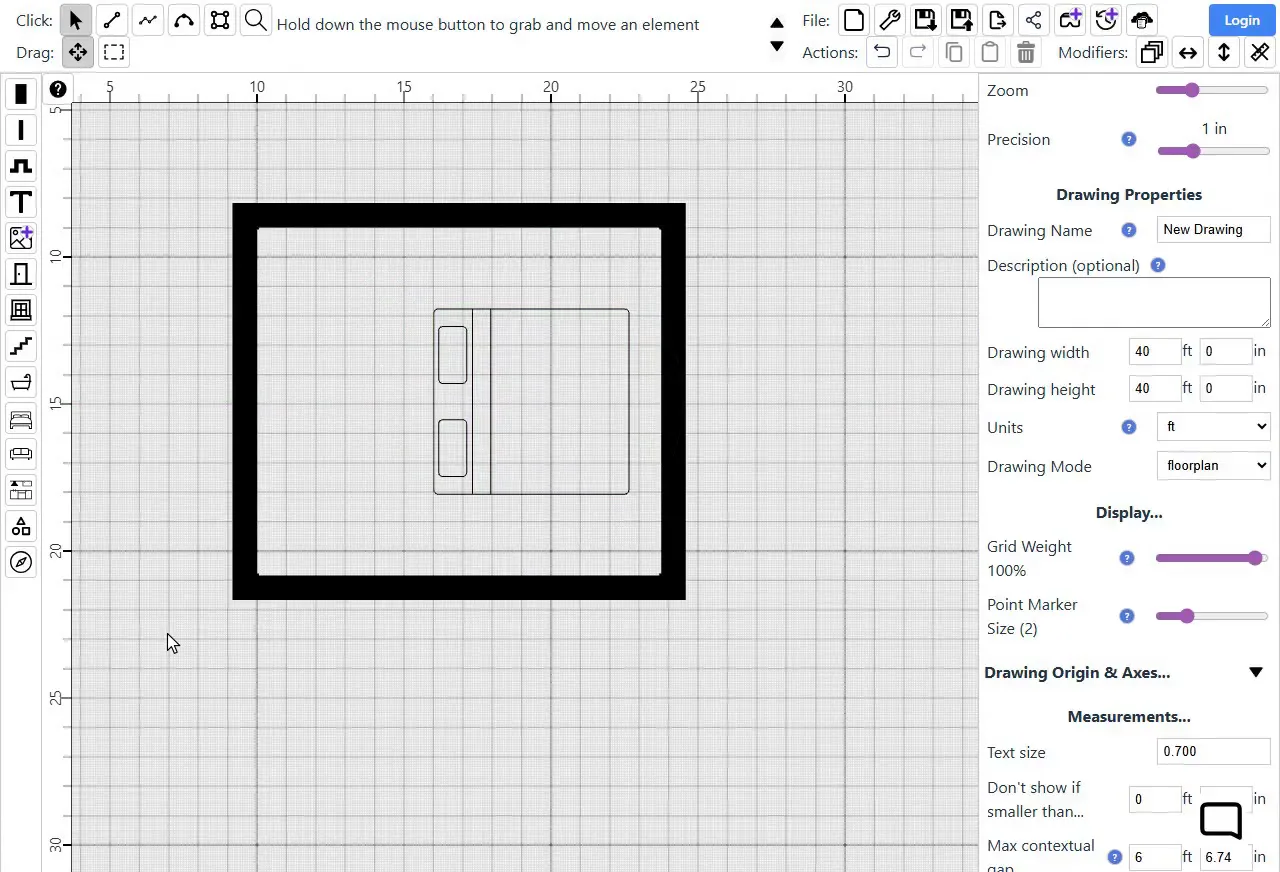
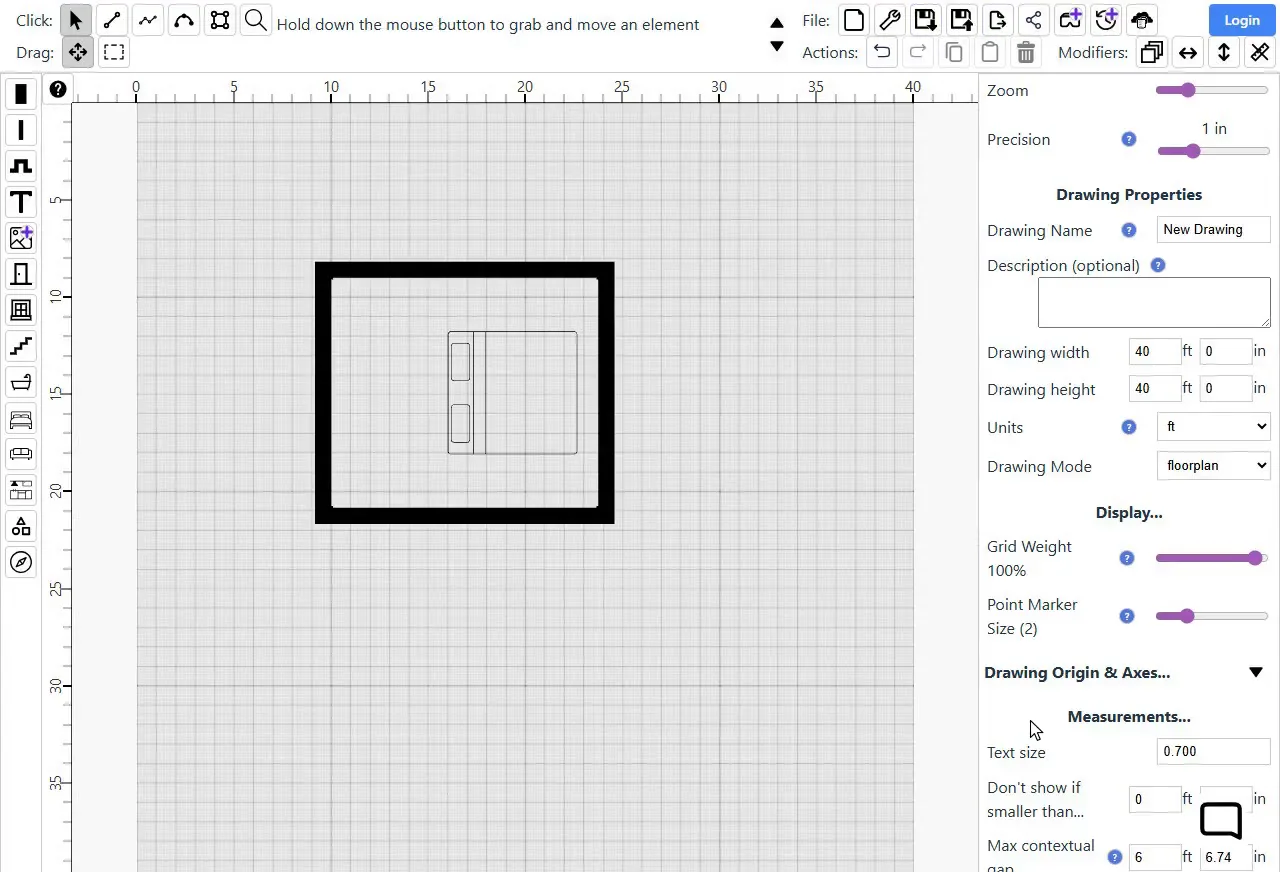
The toolbar runs along the top. Below it are the items toolbar on the left, the canvas in the middle, and the Properties panel on the right.
Point at, or tap, any part of the editor to see what it's for.
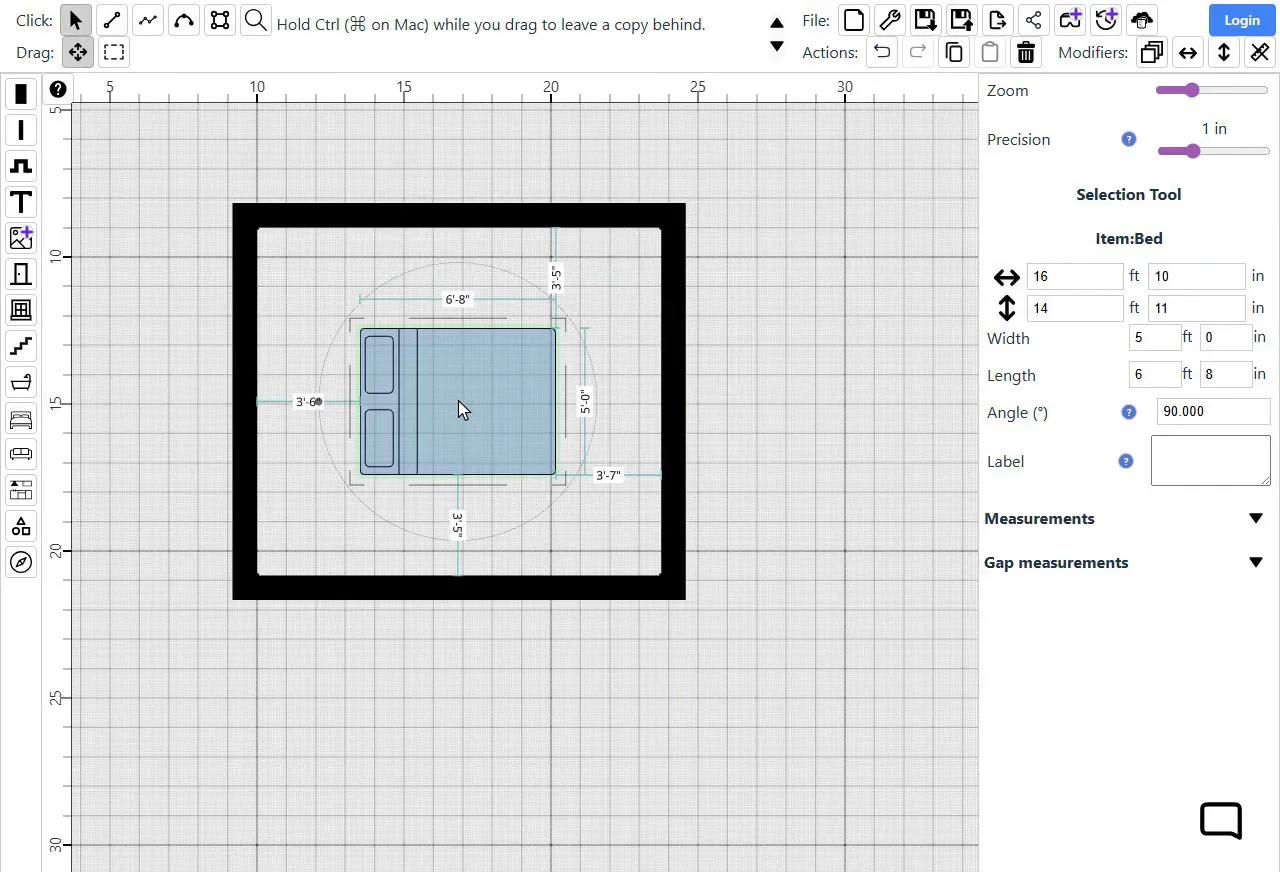
The canvas and rulers.
The canvas in the middle is your drawing. The rulers along the top and left edges show distances in your drawing's units, such as feet or meters, so you can always see how big things are.
To zoom in, roll the mouse wheel forward. The zoom centers on the pointer, so point at the part you want to see. You can also zoom with the Zoom slider at the top of the panel on the right. Below it, the Precision slider sets the step that lines and items snap to as you draw and place them. To see the whole drawing again, right-click an empty part of the canvas and choose "Fit drawing to view".
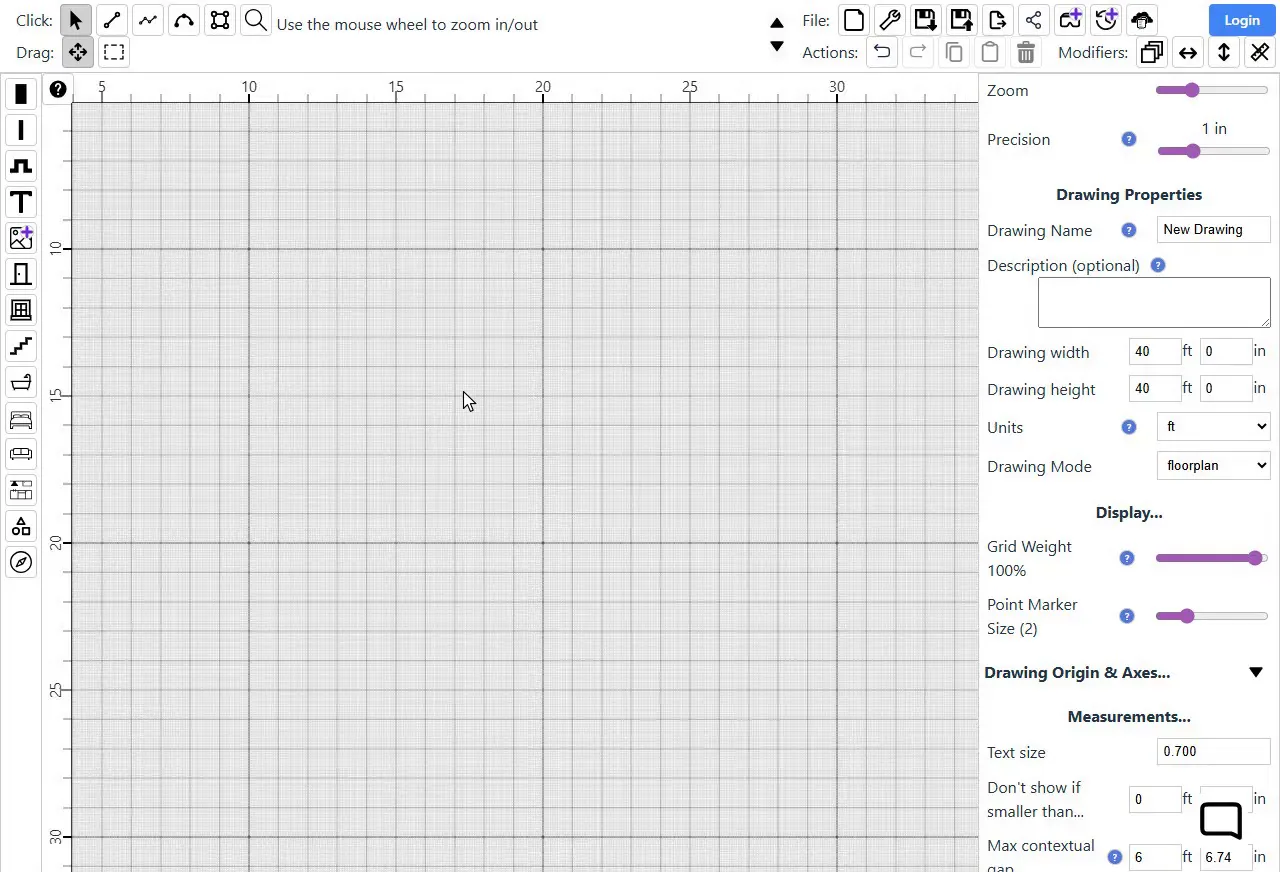
Tip: To change units, right-click an empty part of the canvas and choose "Change drawing units". Right-click a ruler for more options, such as moving the drawing origin, the zero point on the rulers. The ? button where the rulers meet opens the user guide.
Click tools and drag tools.
The top-left of the toolbar has two rows of tools. Click tools, such as Select  and Line
  , work when you click on the drawing. Drag tools, such as Move
  , work when you hold the mouse button down and drag.
To save you switching tools often, a click tool and a drag tool can be on at the same time: for example, click to select, and drag to move. The tools that are on have darker buttons. To switch tools, click a tool's button. Pick the Line tool, and a click draws a line while a drag still moves things.
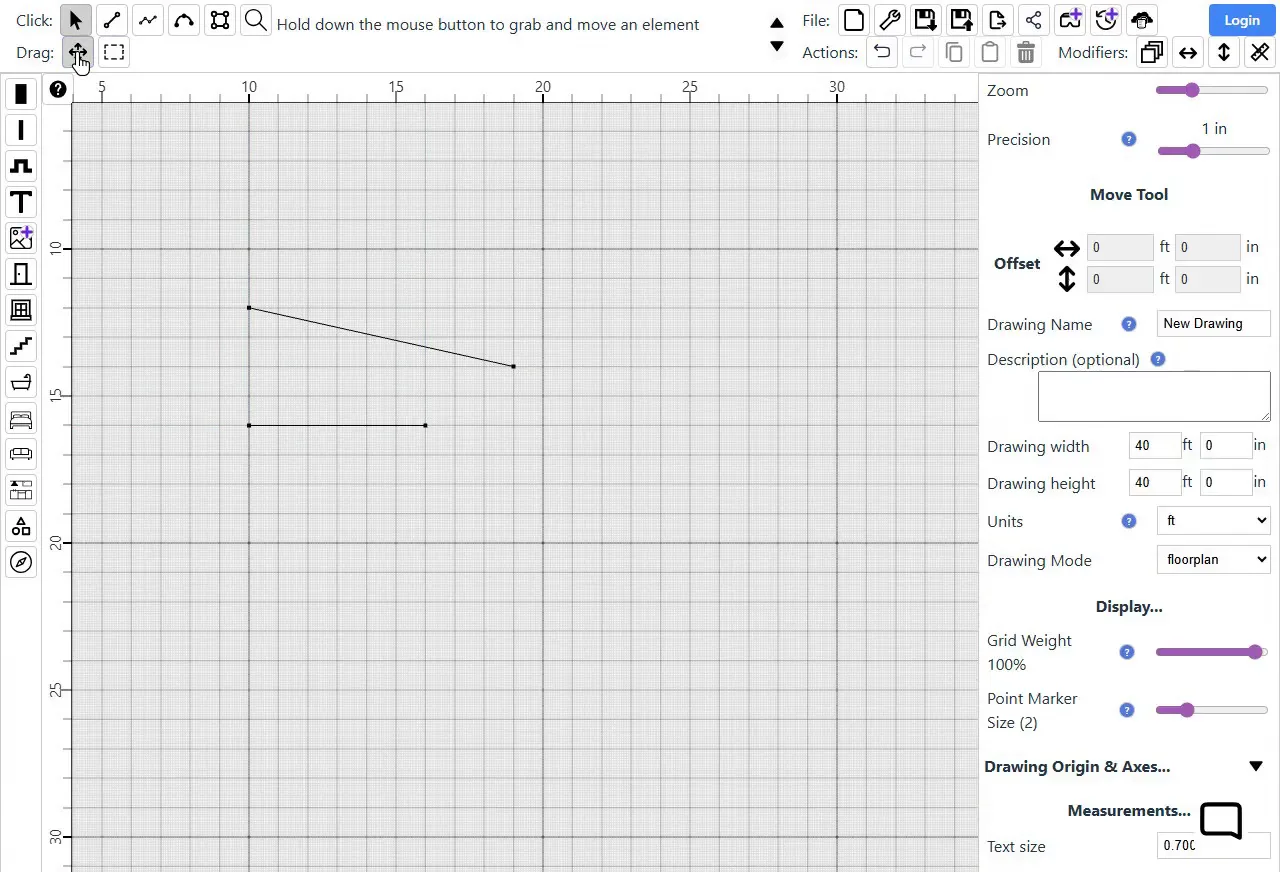
Tip: Click Line, Multiline, Curve or Rectangle a second time and it becomes the only tool that's on, so a drag draws with it instead of moving things. If a drag starts drawing when you wanted to move something, click Move to turn dragging back on.
The hints panel.
The hints panel in the middle of the toolbar tells you what to do next. It updates with relevant hints, depending on the tool you're using and what you've selected. Keep your eyes on the hints panel as you use SimpleDraw, and you'll soon pick up a range of useful tips and shortcuts.
When there's more than one hint, the panel moves on to the next one by itself every few seconds. Use the up and down arrows beside it to go back to one you missed, or to read ahead.
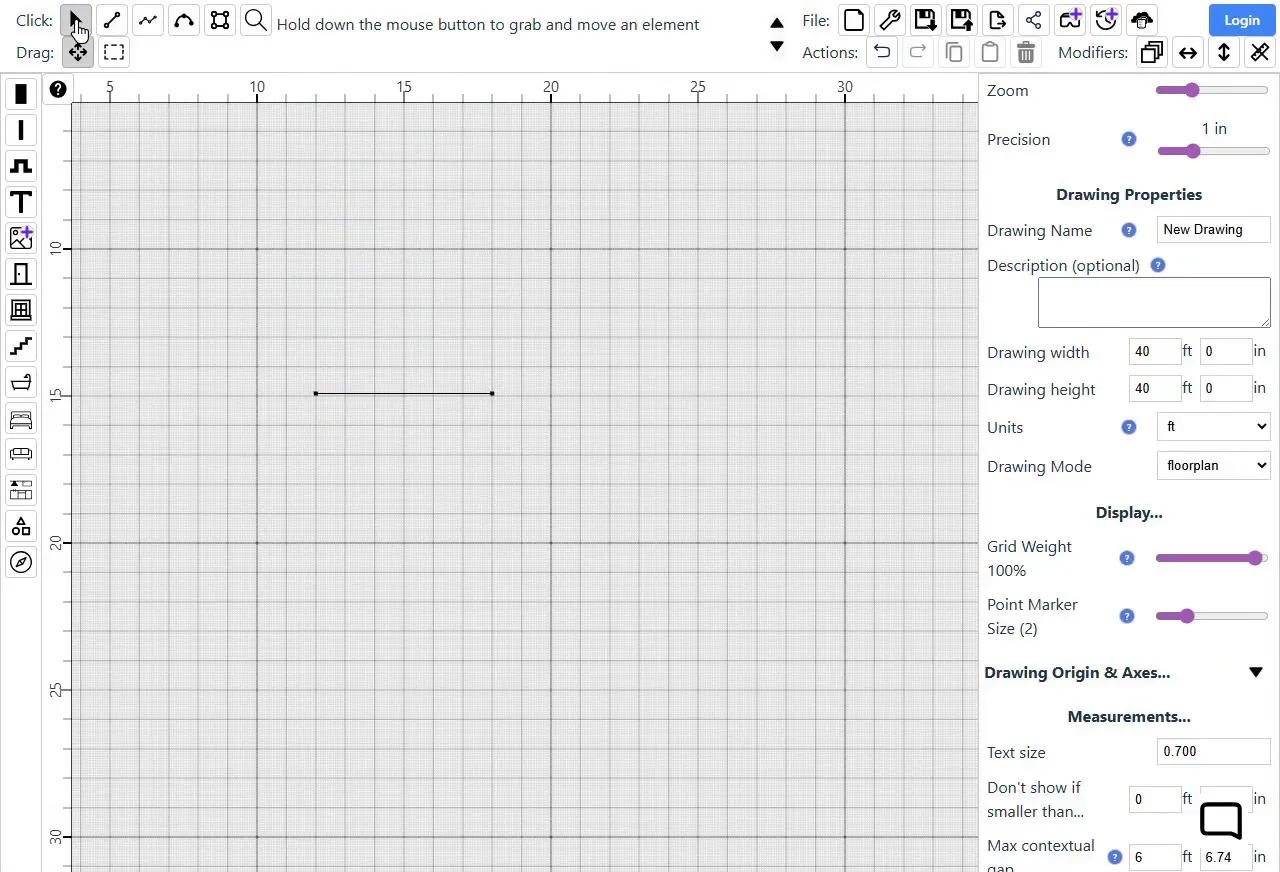
Tip: If you're not sure what to do next, read the hints panel first.
The items toolbar on the left.
The items toolbar down the left side holds the things you add to your drawing. In a floor plan, the top two buttons turn walls on: pick the Rectangle tool  and turn on External Wall
  , and the rectangle you draw is a room with walls.
Below them are Projection/recess, Text, Door, Window and Staircase, and then groups of furniture and fittings: Bathroom, Bedroom, Living Areas and Kitchen, plus Shapes and Annotations. Click a group such as Bedroom  to open it, pick an item, and click on your drawing to place it. Most items can go anywhere in your drawing, but Projection/recess, Door and Window can only be added to a wall.
Tip: What's in the items toolbar depends on the kind of drawing. A Basic Scale Drawing shows shapes, text, a compass rose and a scale bar instead of walls and furniture. You can change the kind of drawing in Drawing Properties, under Drawing Mode.
The right-click menu and the Properties panel.
Right-click anything in your drawing for a menu of the most common things to do with it. For a bed, that's Copy, Duplicate and Delete. For a wall, it's much more: measurements, line type, color, fixed direction and more.
The Properties panel on the right offers more again. Click something to select it, and the panel shows everything about it. For the bed, that's its position, width, length, angle and label, and settings for its measurements. Type a new value and the drawing changes to match. Click an empty part of the canvas, and the panel shows Drawing Properties  : the drawing's name, size, units and drawing mode, and measurement settings that apply to the whole drawing.
Tip: While you're using a tool, the panel shows the settings for the next thing you draw with it, such as the width and color of new lines.
Actions and modifiers.
Actions, on the second row of the toolbar, are Undo  , Redo, Copy, Paste and Delete
  . A button is grayed out when there's nothing for it to do. Undo is also Ctrl+Z. It takes back your last change, even a delete.
Modifiers change how a tool works while you hold a key down. Hold H while you draw or move something, and it only goes left and right: the Horizontal button  lights up while you hold the key. V does the same up and down, and C keeps lines either horizontal or vertical. Shift lets you select several things, and Space hides the measurements
  so you can see your drawing clearly.
Tip: To keep a modifier on without holding its key, click its button. Click it again to turn it off. Hover over any modifier button to see its keyboard shortcut.
File actions.
The File row, at the top right of the toolbar, has New, Drawing Properties, and the buttons to save and share your work. The disk button  saves your drawing: on the free plan it downloads a file to your computer, which you open again later with Load, the button beside it. Share gives other people a link to your drawing.
The Export button  opens the export panel in place of the Properties panel. Choose a size or a scale and click Export to download an image, or Cancel to go back to drawing.
Tip: Free exports include a small SimpleDraw logo. Buttons with a small plus sign, such as View in VR and History, need SimpleDraw Plus, which also stores your drawings in the cloud.
Next steps
Now that you know your way around, follow a whole job from start to finish: draw a room to scale, or browse the other tutorials. For every tool and setting in detail, see the user guide.
Frequently asked questions
Common questions about getting started with the SimpleDraw editor
Ready to start drawing?
Start Drawing Now