
Draw a room to scale
New to the SimpleDraw editor? Take the quick tour first.
Measure the room.
Make a rough sketch of the room's shape on paper.
Measure each wall inside the room, along the floor, from wall to wall. For a chimney breast, alcove or bay, measure its width, how far it sticks out or goes back, and how far it is from the nearest corner. For each door and window, measure its width and the distance from the corner to its nearest edge.
Write every number on your sketch.
Start a floor plan.
Open SimpleDraw and choose Floor Plan. The first time you use SimpleDraw, your drawing uses feet and inches if you're in the US, and meters everywhere else. To use different units, such as mm, right-click an empty part of the drawing and choose "Change drawing units".
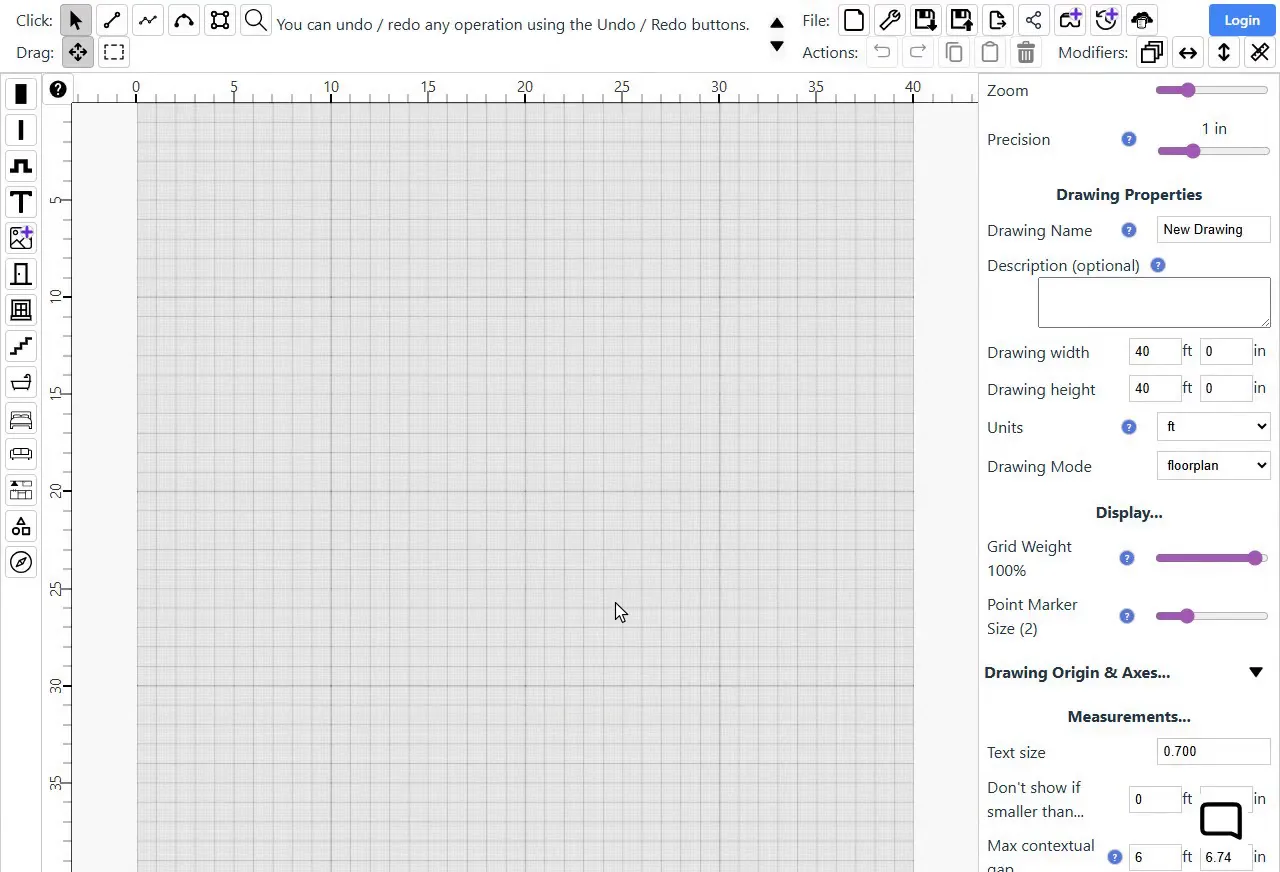
A new drawing starts at 40 ft × 40 ft in feet, or 10 m × 10 m in meters, which should be plenty for one room. You'll trim your drawing to fit the room before you export.
Draw the walls.
Pick the Rectangle tool  and turn on External Wall
  . Click where you want the room's top-left corner. Then move to where you want the bottom-right corner, guided by the wall lengths shown, and click again.
If you don't get it right first time, click an empty spot on the drawing to deselect the rectangle, so you can move one corner on its own. Then drag that corner to adjust it.
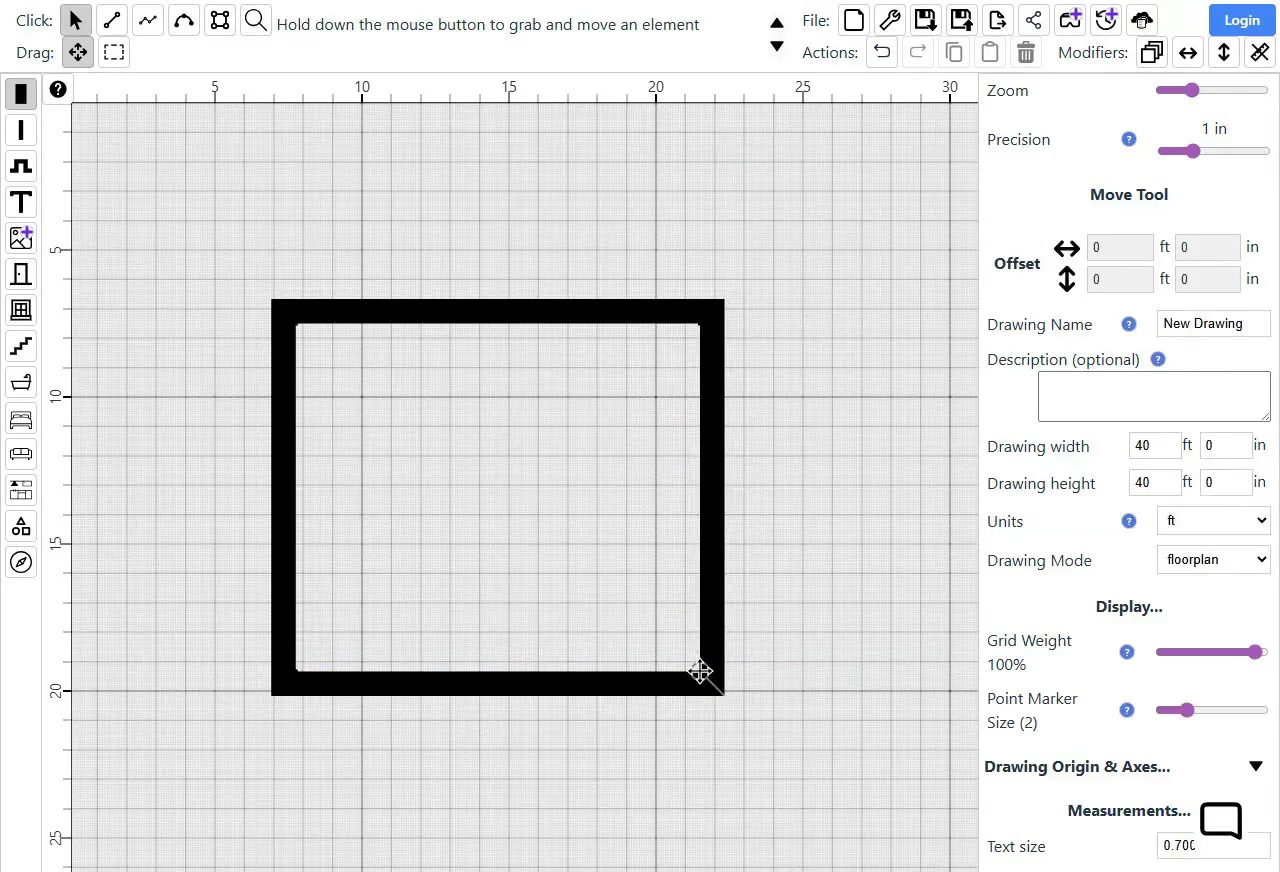
Tip: Starting from the top-left corner puts the wall thickness outside the room, so the lengths you see are the inside of the walls, which is what your tape measure gave you. If the corner jumps in steps that are too big, zoom in with the mouse wheel, or use the Precision slider at the top of the panel on the right for finer control.
Add a chimney breast, alcove or bay.
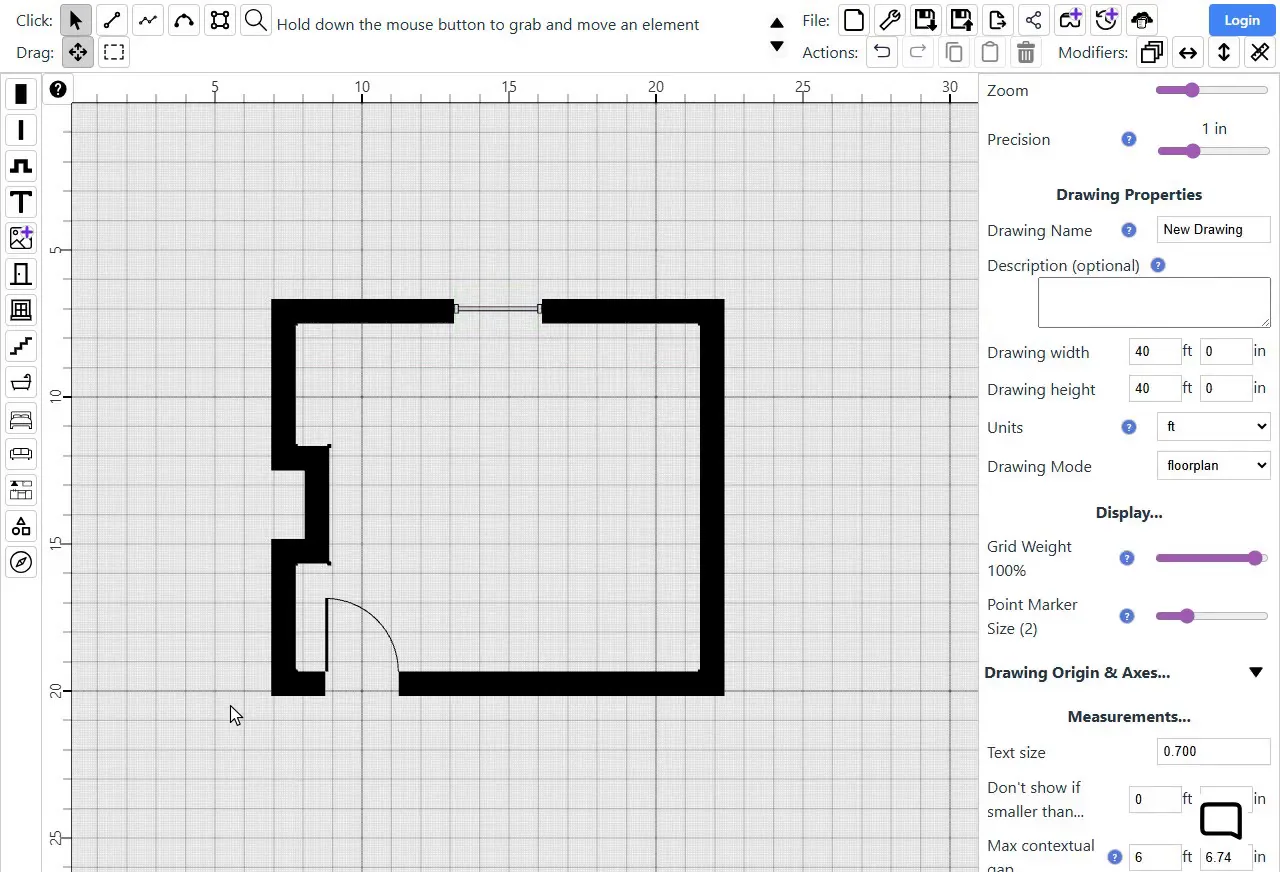
Pick Projection/recess  . Point at the wall to place it, with your mouse inside the room for a projection (e.g. a chimney breast), and outside the room for a recess (e.g. an alcove or bay window). As you move along the wall, the distance to each corner shows. Click when the near side is the right distance from the corner: 4'2" (1.27 m) in our example.
Then drag the far end of its front to set the width, which shows as you drag, and drag the front itself to set the depth. Our chimney breast is 4'0" wide and 1'2" deep (1.22 m × 0.36 m).
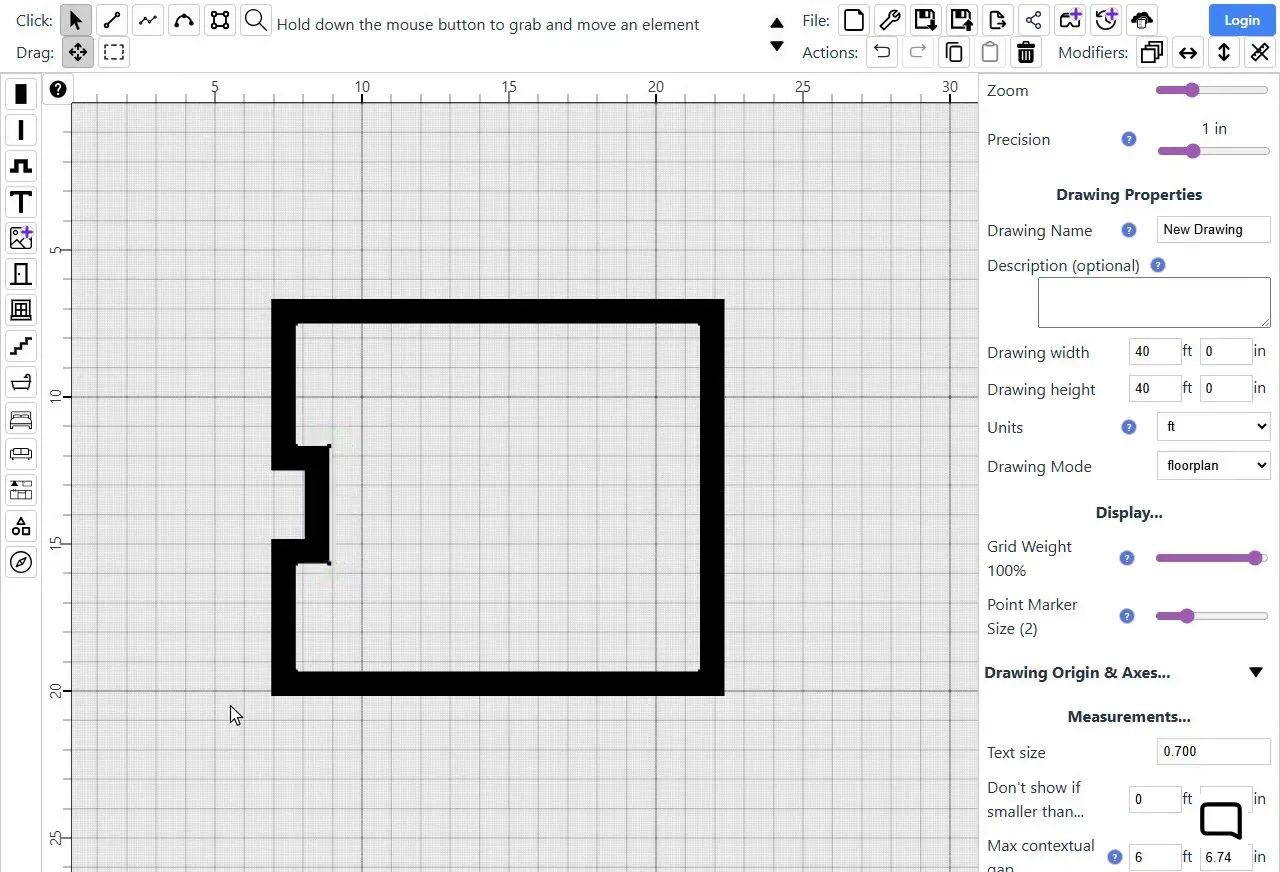
Tip: To check its size, click one of the corners at its front, and both its width and its depth show on the drawing. Zoom in to place it more finely. If you know the size before you start, you can type Width and Depth in the panel before you click. For a bay with angled sides, an L-shaped room or any other shape, see how to draw L-shaped rooms and angled bays.
Add doors and windows.
Pick Door  and point at the wall where the door goes. As you move along the wall, the distance from each side of the door to the next corner shows. Click when they match your measurements. Then set Hinge and Opening in the panel so the door swings the way yours does.
Windows  work the same way. If your door or window isn't the width shown in the panel, change Width before you click.
Add furniture (optional).
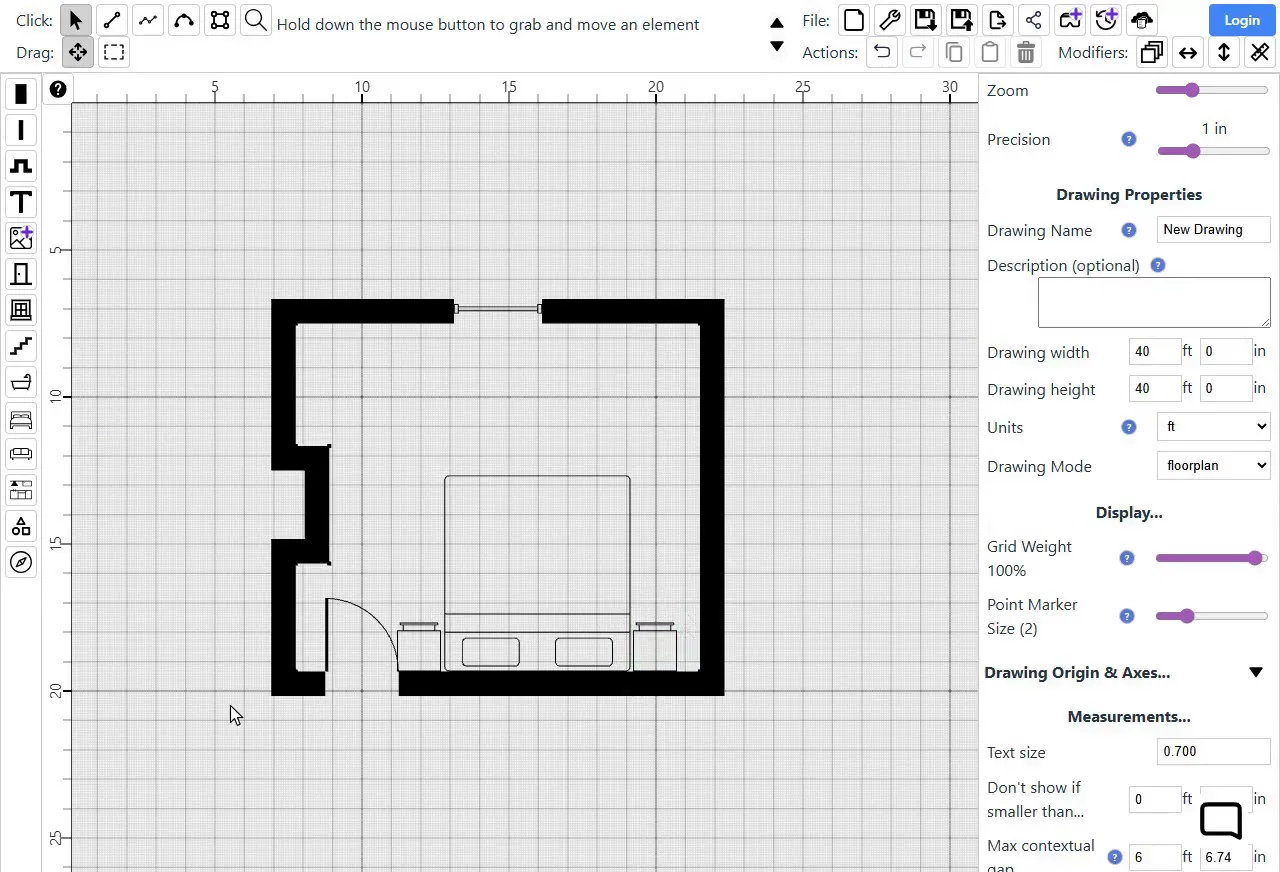
Open the Bedroom group  , or Living Areas, Kitchen or Bathroom. Pick an item and click near a wall, and it lines up against the wall. The item stays selected, with handles around it. Drag a handle to change its size, or drag the dot on the circle around it to turn it.
To change an item later, click it, and you can move, resize or turn it in just the same way.
Show the measurements.
The lengths you see while you draw disappear when lines are no longer selected. To show a wall's length on the plan, right-click the wall and choose Internal Measurements, then Length. Do this for each wall you want measured. A wall with a chimney breast is made up of several wall segments, and each gets its own measurement.
To show where the doors and windows are along a wall, choose Intervals instead of Length. You can also show furniture sizes, and the gaps between furniture and walls: see item measurements in the user guide.
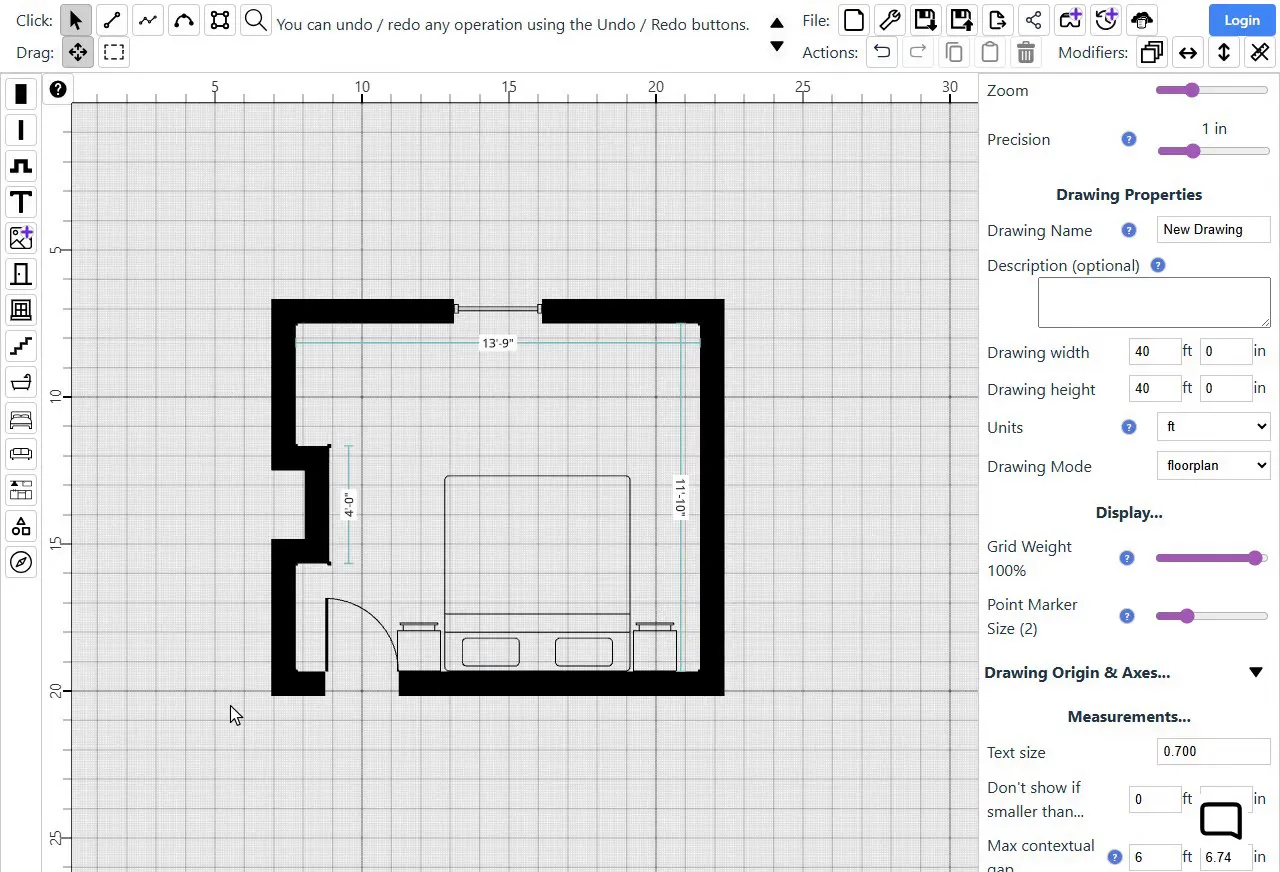
Trim the drawing to fit the room.
The image you export covers the whole drawing, so trim it to fit the room first. Right-click an empty part of the drawing and choose "Fit drawing to view", so you can see all of it. Press Ctrl+A to select everything, then drag a corner of the room to move it all to the middle of the drawing. Click an empty spot on the drawing to deselect it.
In Drawing Properties  on the right, set Drawing width and Drawing height a little bigger than your room. Our example bedroom is 13'9" × 11'10" (4.19 m × 3.61 m), so we used 18 ft × 16 ft. In meters, 5.5 m × 5 m would do. Then choose "Fit drawing to view" again.
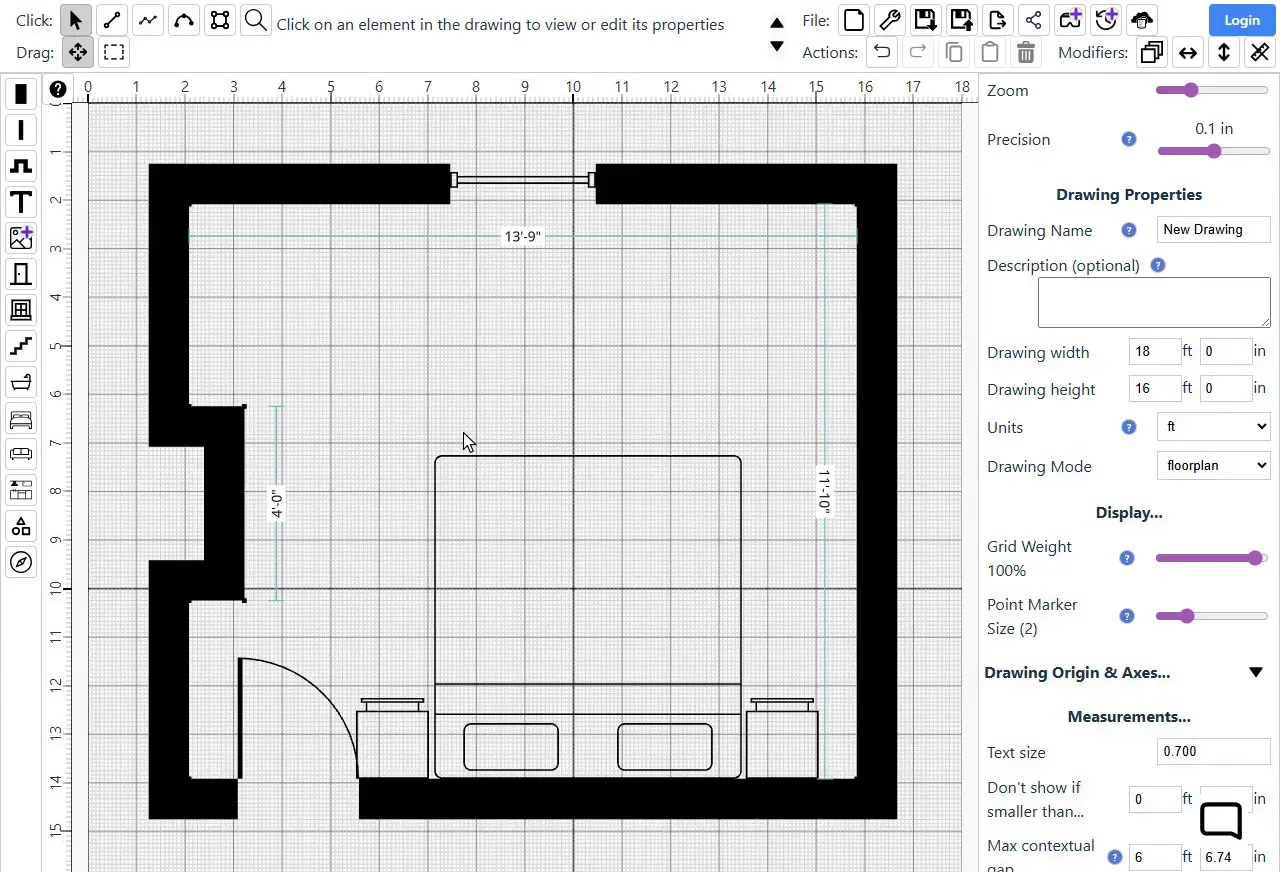
Tip: Don't worry if you trim too much: you can make the drawing bigger again, and everything you drew will still be there.
Export at scale.
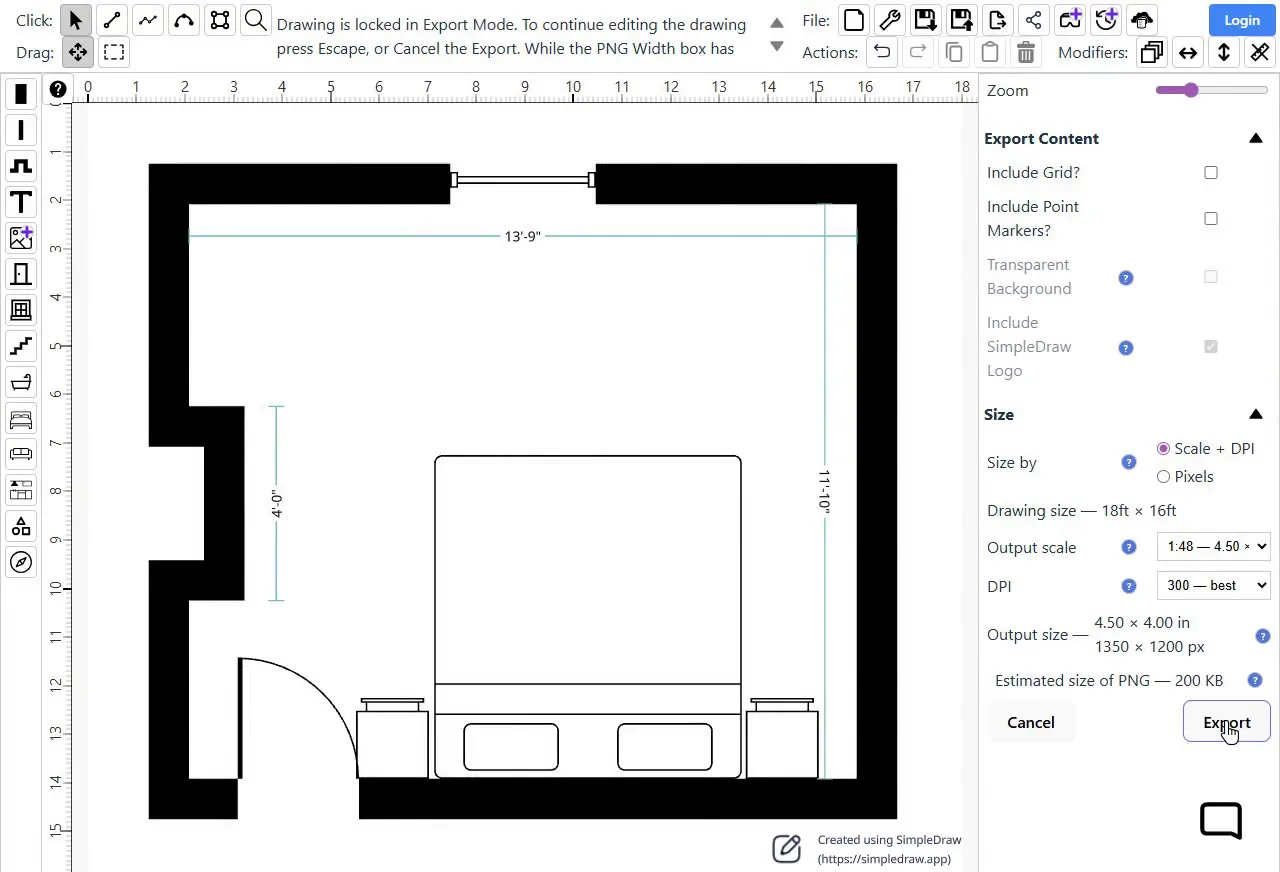
Click the PNG button  at the top of the screen. "Scale + DPI" is already chosen. For Output scale, choose 1:48, which is ¼" = 1'. For a metric drawing, choose 1:50. Then click Export to download the image.
On the free plan, you may be asked a few quick questions first. They help us understand how people use SimpleDraw and how to improve it, and we really appreciate you taking the time to answer.
To make a PDF, or to be sure your printer prints at exactly the right scale, see how to print a drawing at a specific scale.
Next steps
Save your drawing so you can come back to it later. With SimpleDraw Plus, you can walk around your room in 3D, or in virtual reality if you have a suitable headset.
Frequently asked questions
Common questions about drawing a room to scale in SimpleDraw
Ready to draw your room?
Start Drawing Now