
Draw L-shaped rooms and angled bays
New to the SimpleDraw editor? Take the quick tour first.
An L-shaped room
Draw the whole rectangle.
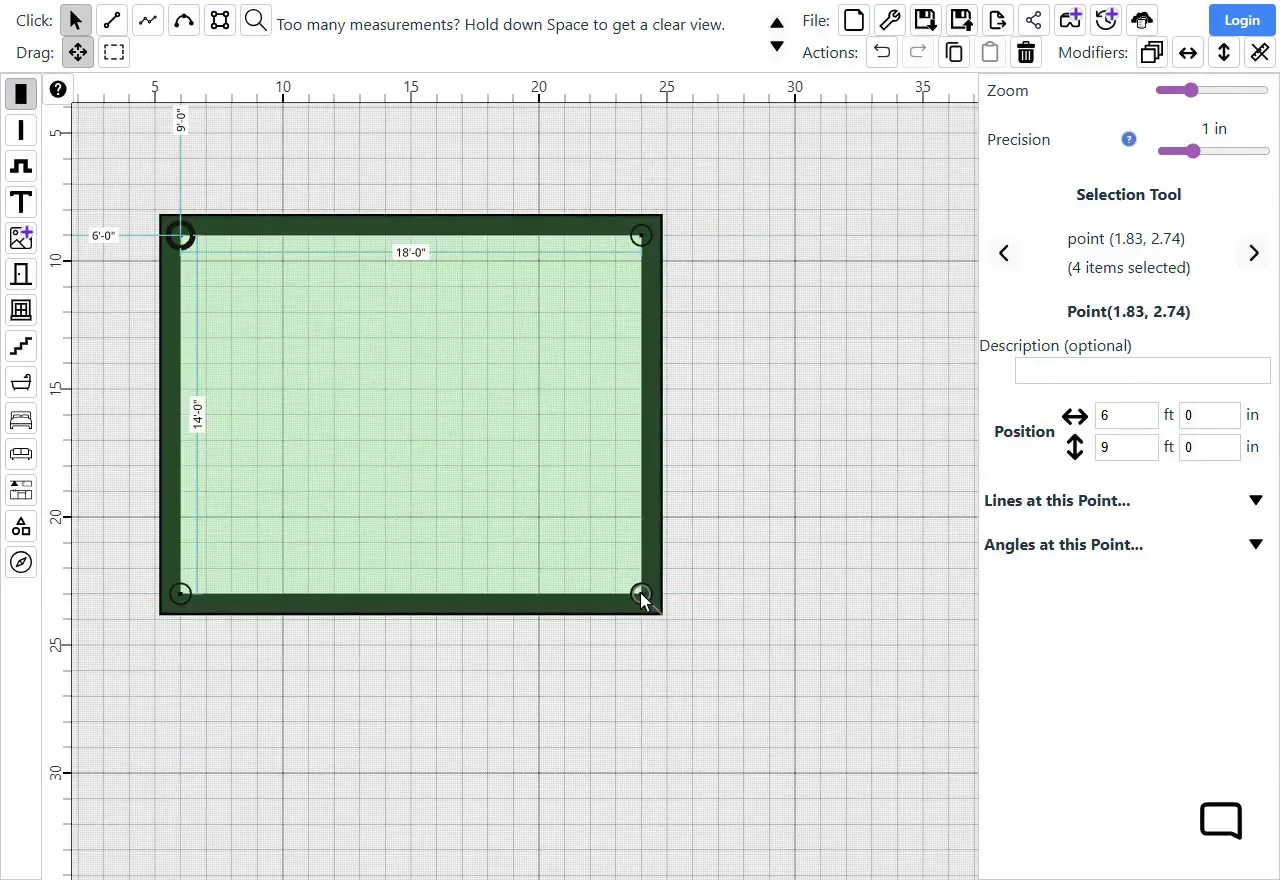
Open SimpleDraw and choose Floor Plan. Pick the Rectangle tool  and turn on External Wall
  . Draw a rectangle around the whole room, as if the missing corner were there: click the top-left corner, then the bottom-right.
Our example living room is 18'0" × 14'0" (5.49 m × 4.27 m) overall.
Tip: New to drawing a rectangle to size? How to draw a room to scale takes you through it.
Split the corner.
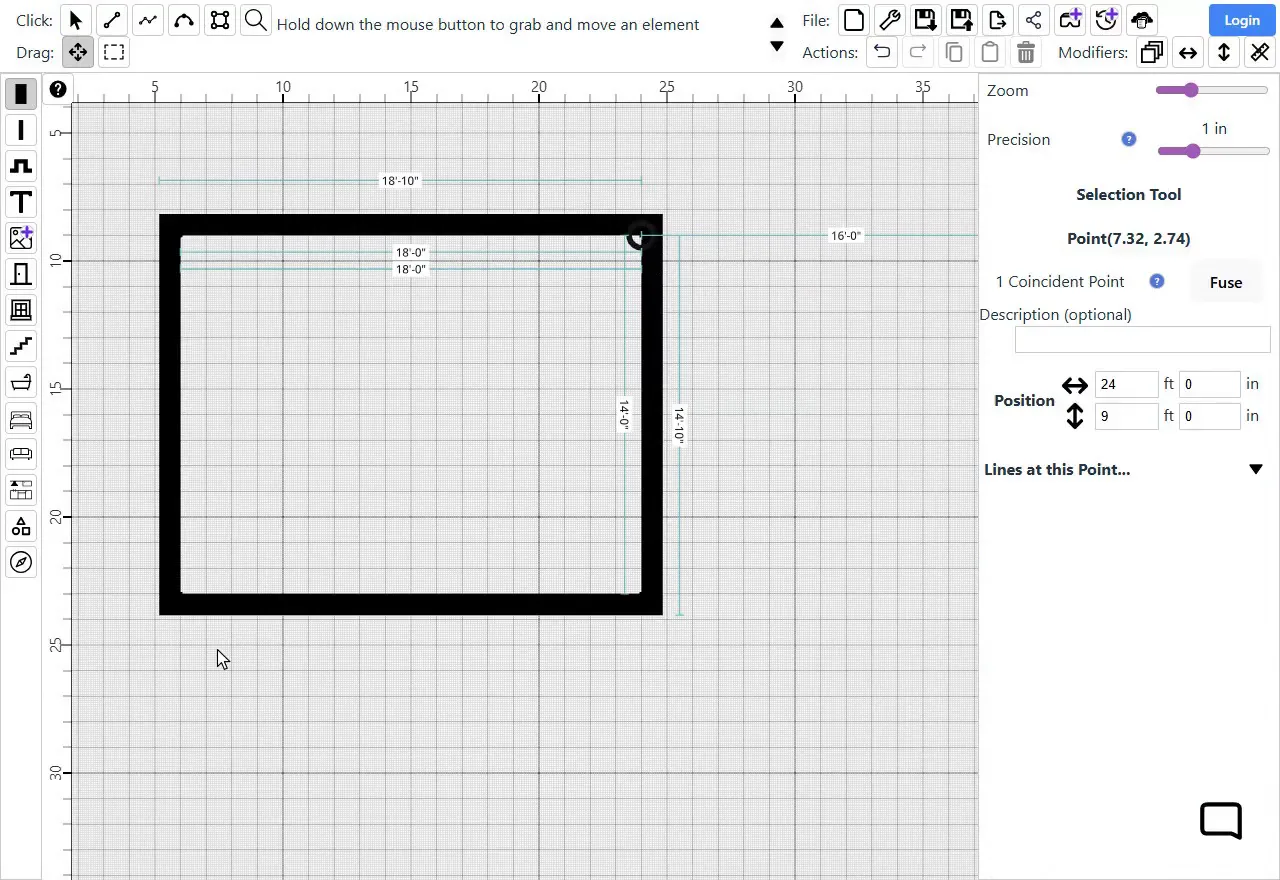
Click an empty spot on the drawing, so the rectangle is no longer selected. Then right-click the corner where the room's missing piece is, top right in our example, and choose "Split point".
The corner looks the same, but it is now two corners in the same place, one at the end of each wall.
Pull the two corners back.
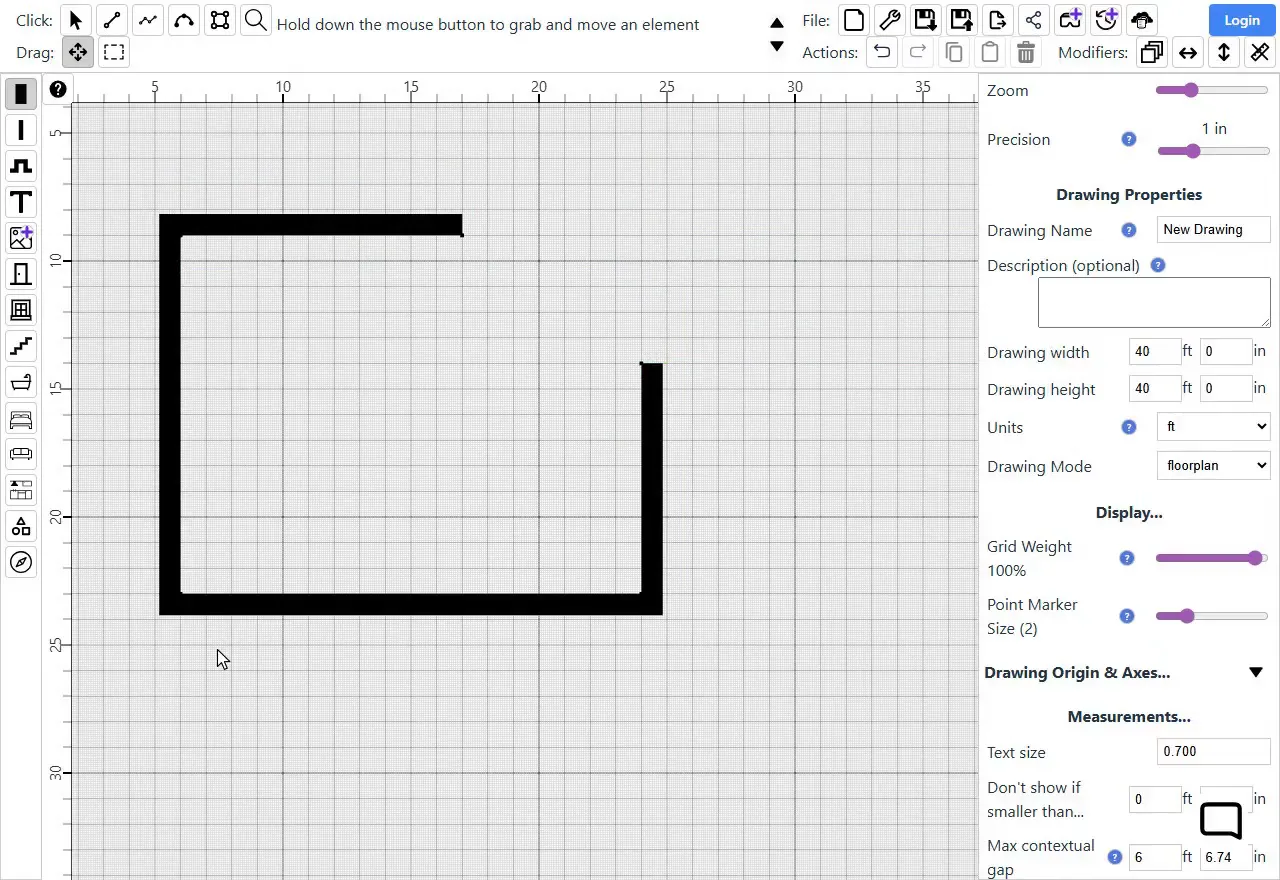
Drag the corner along one wall to where the room turns. Only that wall's end moves: the other wall's end stays at the old corner. Then drag from the old corner again, this time along the other wall, to where the room turns. Each wall stays straight as you drag.
In our example, the top wall stops 7'0" (2.13 m) short of the corner, and the right wall starts 5'0" (1.52 m) lower down.
Draw the missing walls.
Pick the Multiline tool  , and check that External Wall is still on. Hold down C, which keeps each new wall horizontal or vertical.
Click the end of the top wall, then the inside corner of the L, where the two new walls meet, then the end of the right wall. Clicking the end of a wall joins the new wall to it and finishes the line.
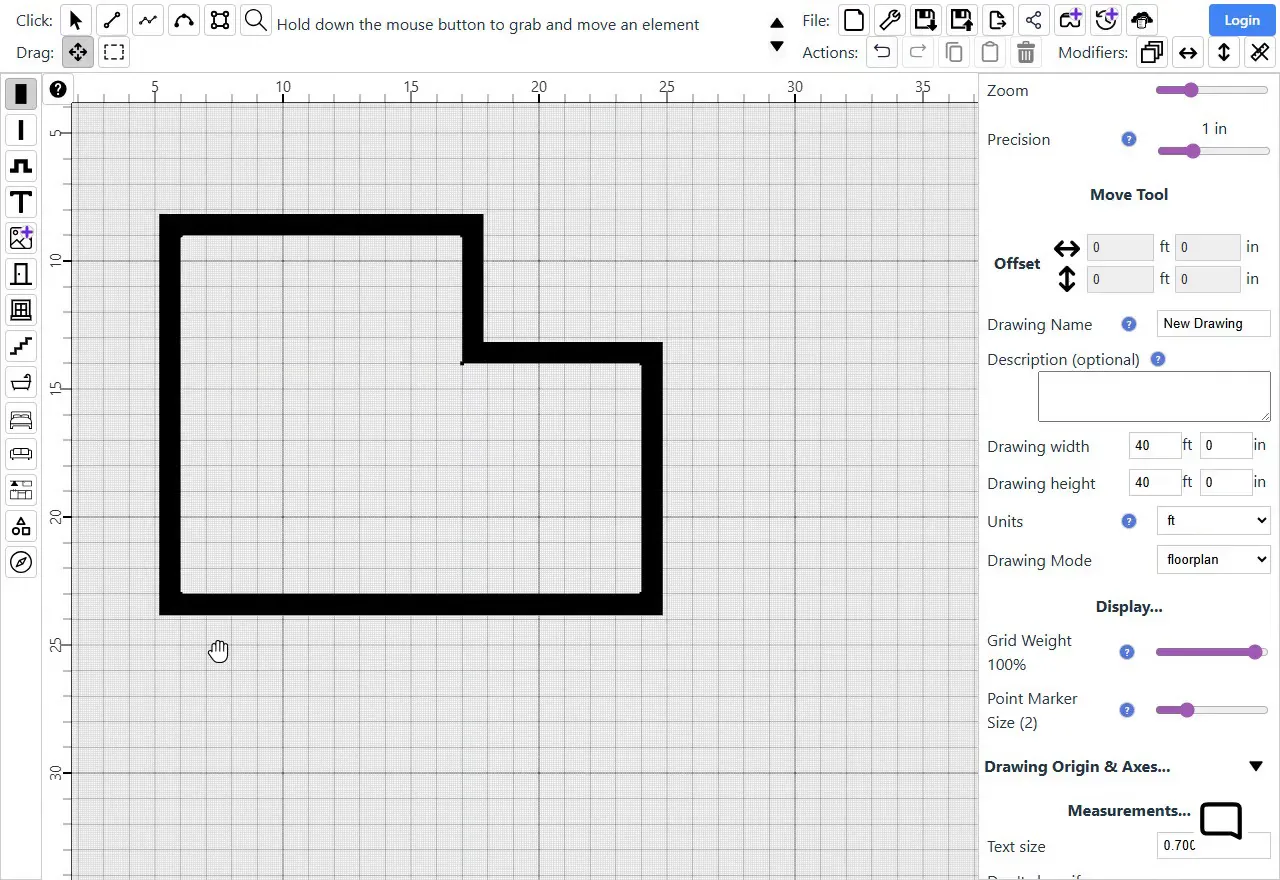
Tip: Go around the room clockwise, as here, so the new walls' thickness goes outside the room. Make the last click right on the end of the wall: if it misses, even by an inch, the walls don't join.
A bay with angled sides
Add the bay.
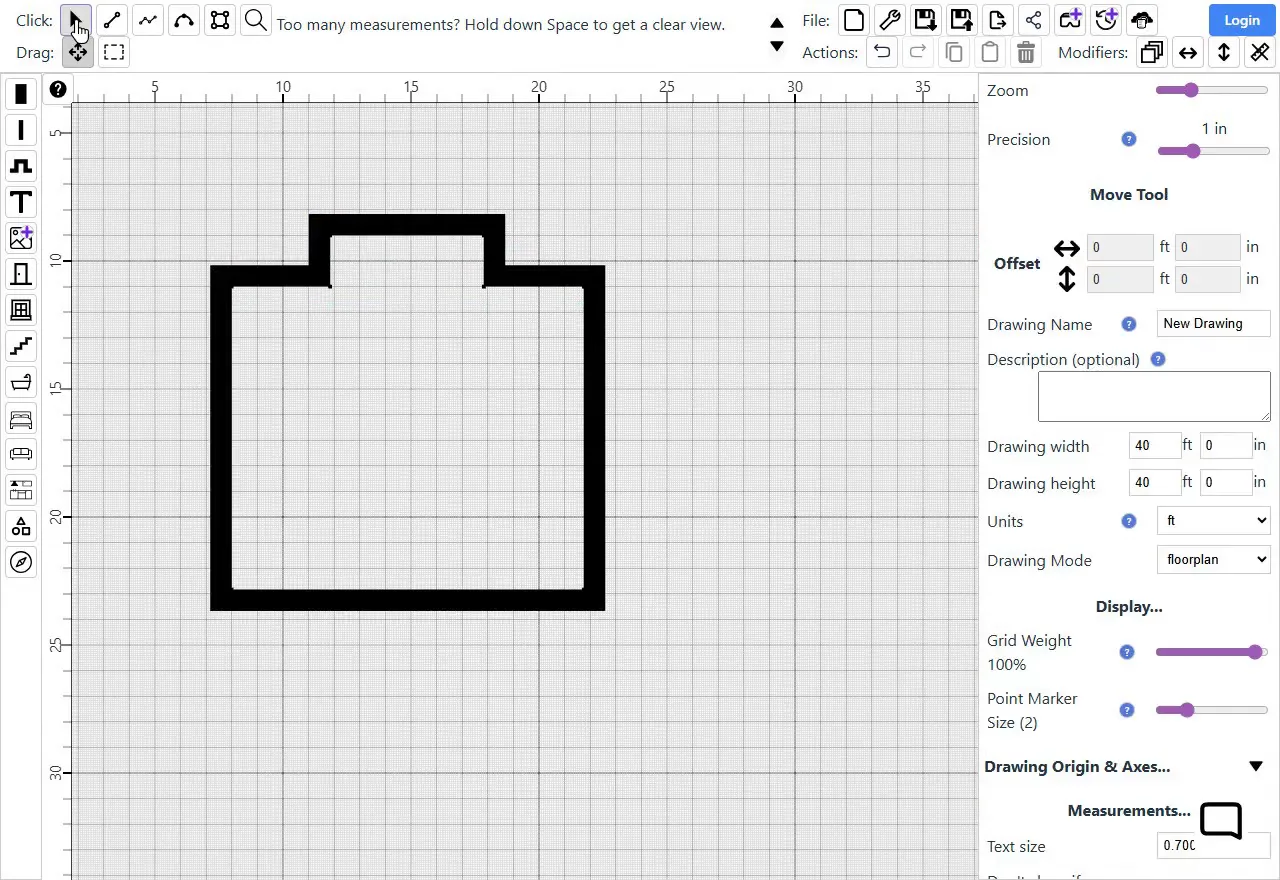
Draw the room first. Pick Projection/recess  and type the bay's Width and Depth in the panel on the right. Width is measured at the back of the bay, where it meets the room. Ours is 6'0" wide and 2'0" deep (1.83 m × 0.61 m).
Then point at the wall with your mouse just outside the room, and click.
Free its two sides.
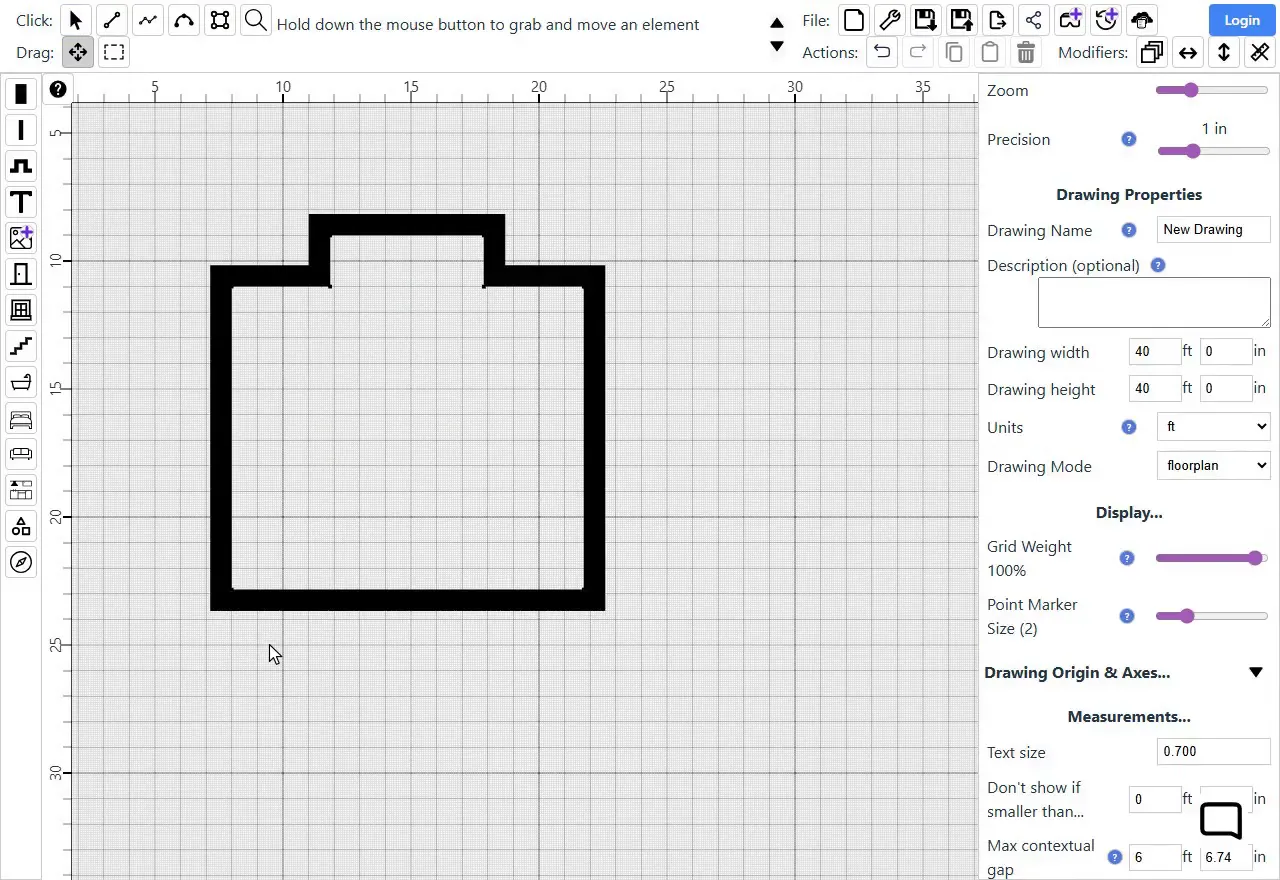
Right-click one side of the bay and choose "Release fixed direction". Do the same for the other side.
A wall normally keeps its direction when you drag one of its corners. This lets the two sides turn.
Angle the sides.
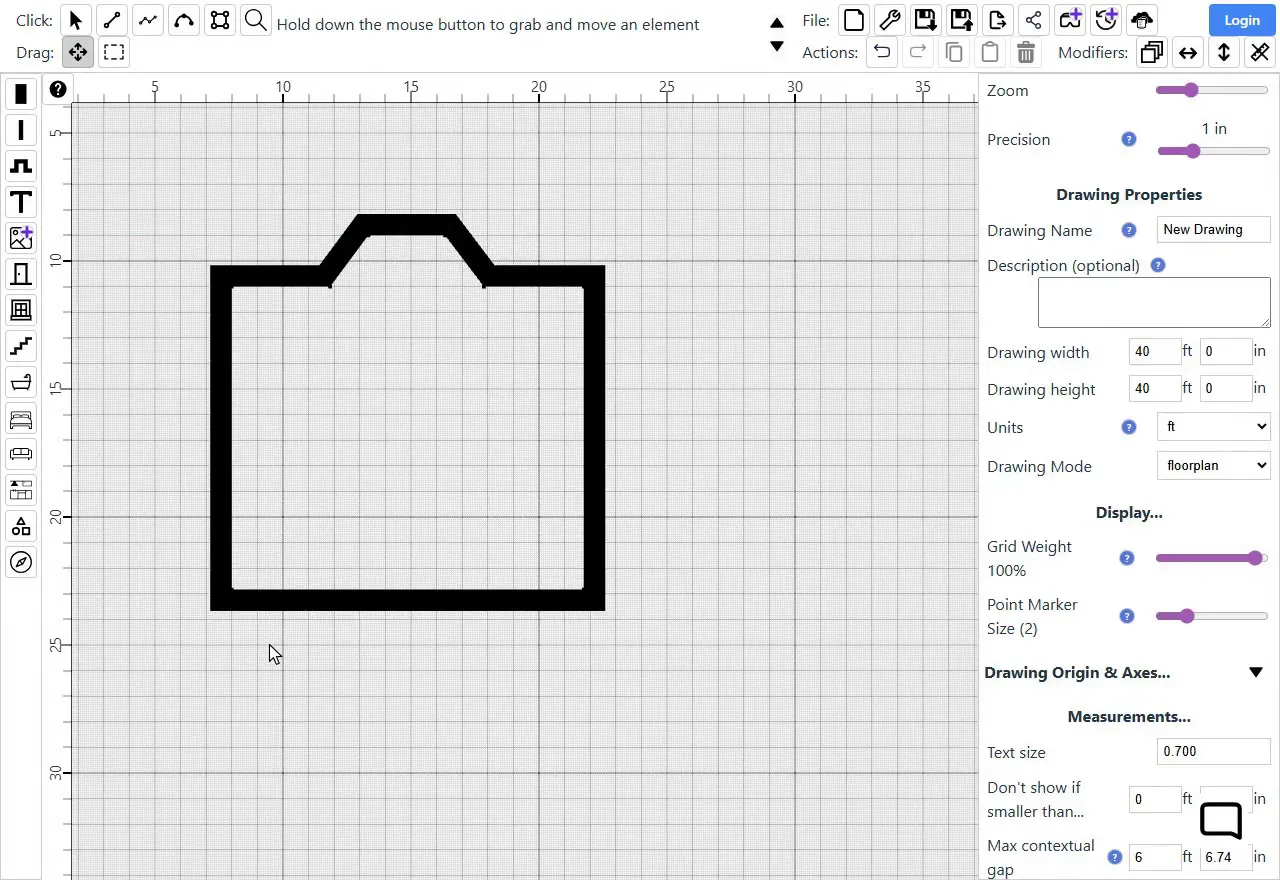
Drag each front corner of the bay along the front, toward the middle. The side turns as you drag, and the front stays straight.
Our bay's front corners each came in 1'6" (0.46 m), which leaves a front 3'0" (0.91 m) wide.
Any other shape
Draw it corner by corner.
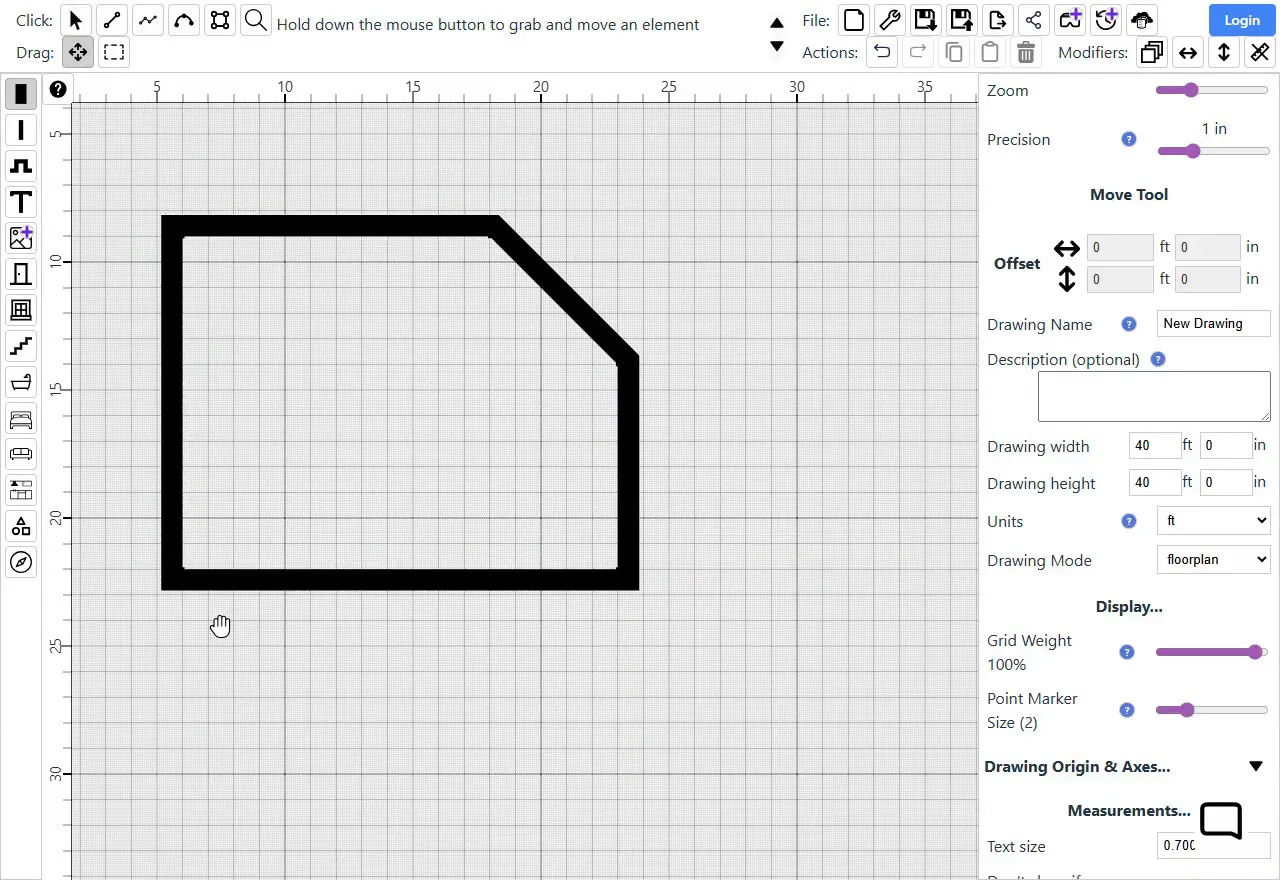
For a shape the steps above don't cover, draw the walls one corner at a time. Pick the Multiline tool and turn on External Wall . Click each corner of the room in turn, going clockwise, and finish by clicking the first corner again.
Walls can be at any angle, like the cut-off corner in this example.
Tip: Hold down C while you place a corner to keep that wall horizontal or vertical.
Next steps
Once the walls are in, the rest is the same as for any room: add doors, windows and furniture, show the measurements, and export at scale. How to draw a room to scale covers each step.
Frequently asked questions
Common questions about drawing rooms that aren't rectangles in SimpleDraw
Ready to draw your room?
Start Drawing Now